Virtual Camera with Beauty Filters
Quick answer
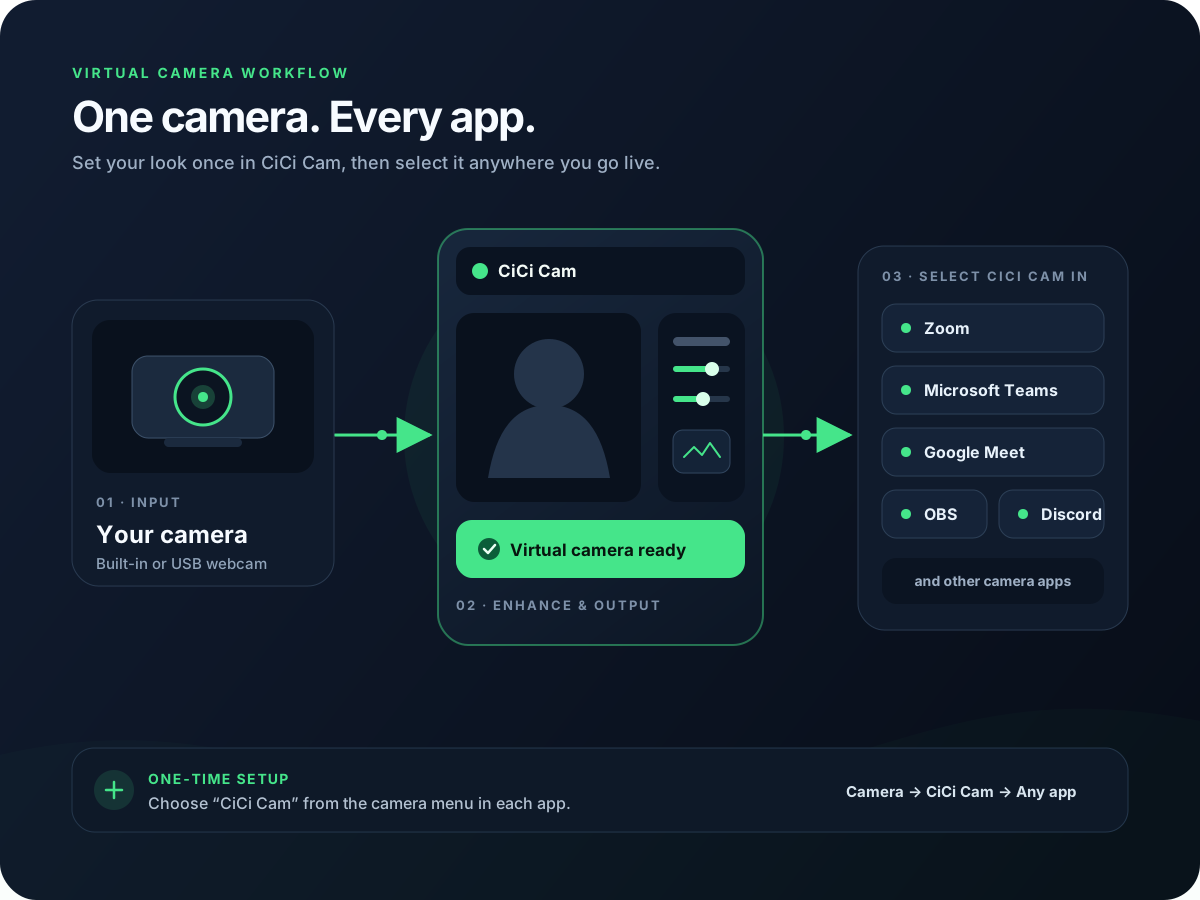
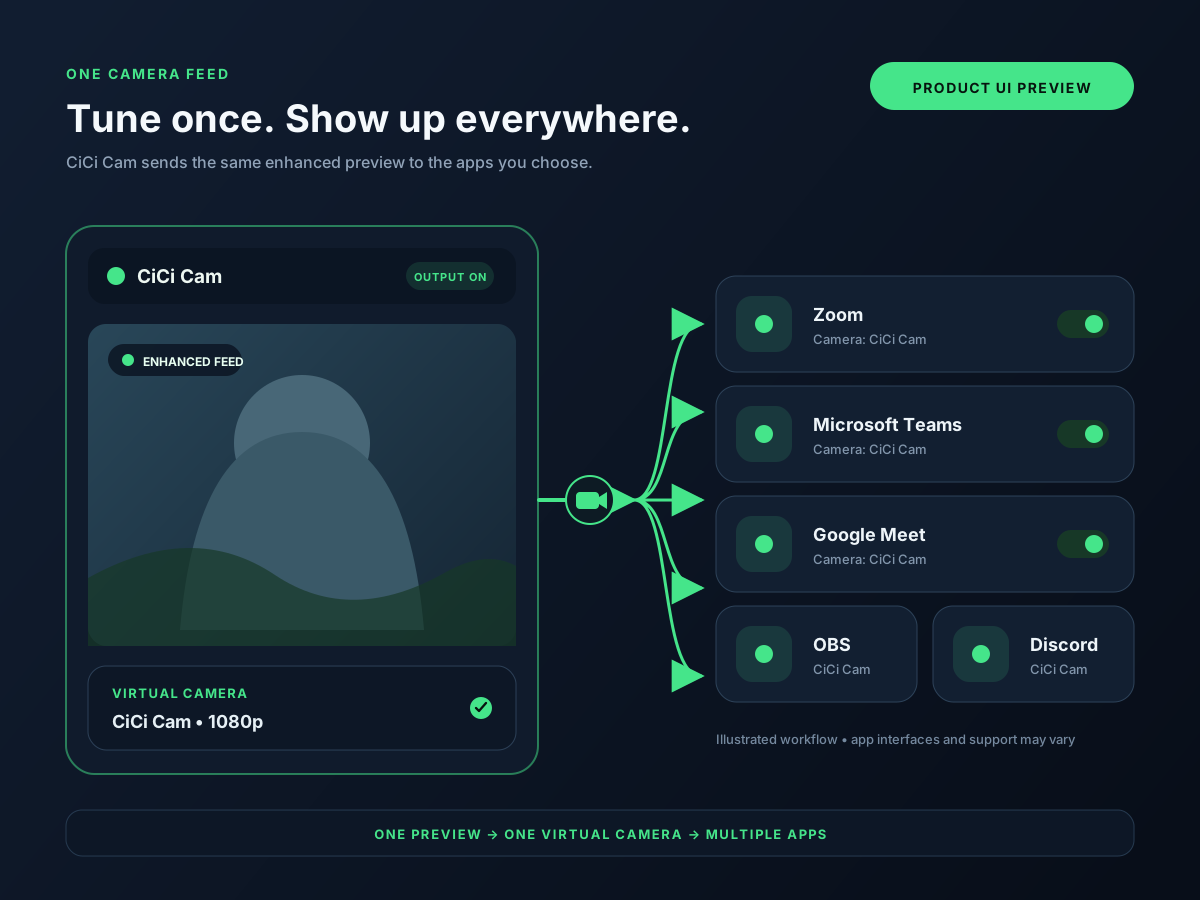
A virtual camera with beauty filters lets you prepare one webcam image, then select that feed in compatible desktop apps. CiCi Cam processes the physical webcam locally on Windows or Mac and exposes a camera device that apps such as Zoom, Teams, Meet, OBS, and Discord can list after installation, permission checks, and any required restart.


Windows 10/11 · macOS 14+ on Apple Silicon · Virtual-camera support can vary by app or device policy
Why the default setup falls short
Rebuilding your camera in every app is wasted time
Most beauty tools live inside one app. If you stream on OBS, take calls in Teams, and teach in Meet, you're tuning three setups separately every week.
App-specific filters never look the same
Zoom's touch-up, AR-style effects, and OBS filters solve different problems. A saved virtual-camera preset can keep the source image more consistent across the compatible apps you configure.
Multiple processing layers complicate troubleshooting
Running strong effects in both the virtual camera and the destination app can reduce detail or make performance issues harder to isolate. Start with one appearance-processing layer and test the final preview.
How the setup works
- 1
Install the virtual camera once
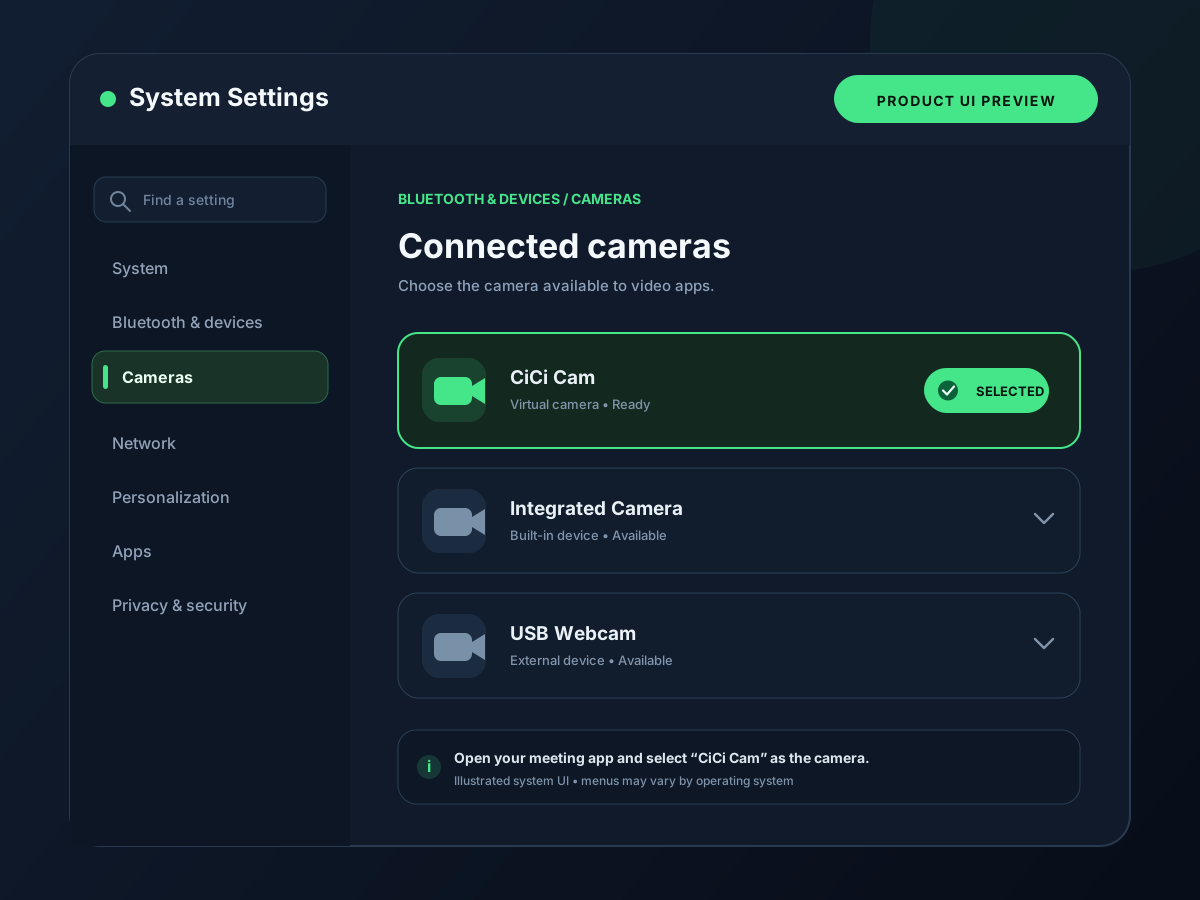
CiCi Cam installs on a supported Windows or Mac computer and registers a virtual camera. Compatible apps can list it after permissions are granted; some apps need to be fully restarted after installation.
- 2
Build one master beauty preset
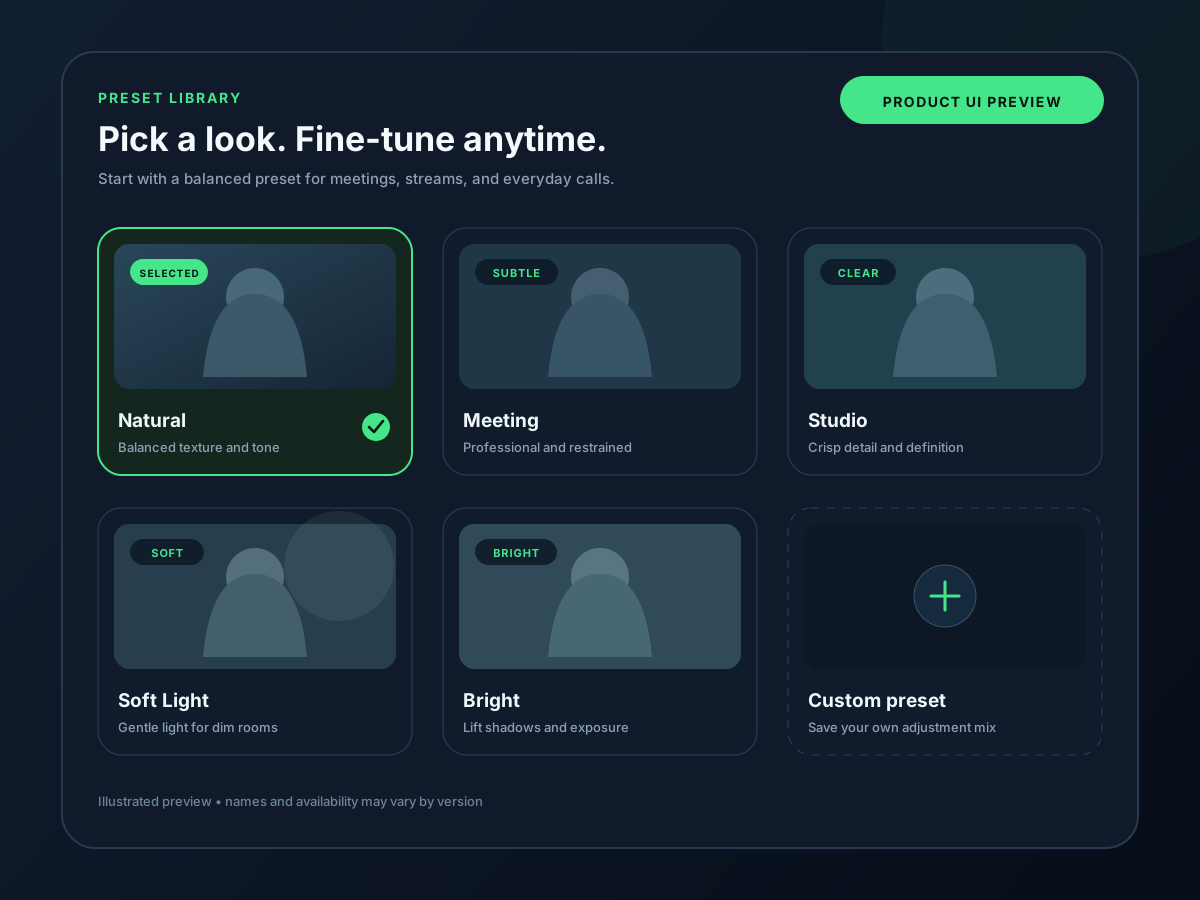
Tune a default look—smoothing, lighting, makeup, and color—in CiCi Cam. You can reuse that preset in each compatible meeting, class, or streaming app where you select the virtual camera.
- 3
Switch each app's camera once
In each compatible app's camera settings, select “CiCi Cam” and check its final preview. An app update, permission change, or device policy can require you to select it again.
- 4
Switch presets, not apps
Change presets in CiCi Cam while its output is running. Apps currently using that virtual-camera feed receive the updated image without rebuilding the preset inside each app.
See it in your workflow
Setup visuals and product previews
What CiCi Cam includes
Beauty stack
Smoothing, whitening, soft light, eye highlight, makeup, and face-shape controls — all in one pipeline.
Lighting correction
Auto-exposure and tone mapping for dim rooms, mixed light, and changing daylight.
Filters and LUTs
Curated film looks plus support for importing your own LUTs to match a brand or stream style.
Local processing
All processing happens on your device. Your webcam feed never leaves your computer.
Last reviewed:
Frequently asked questions
What apps recognize CiCi Cam as a camera?
Does the virtual camera work in the browser?
Is the virtual camera 1080p?
Can I run two virtual cameras at once?
Does it work offline?
Virtual camera setup and troubleshooting
Learn how a virtual camera delivers your enhanced feed, or get help when CiCi Cam is missing from the camera list. On Mac, camera extension approval and camera access are separate steps.
Try CiCi Cam free
Install on Windows or Mac, build your preset, and use it in every video app.
Download CiCi Cam Free