


Avoid double smoothing
If smoothing is already configured in CiCi Cam, start with Touch up my appearance disabled or set very low. Add it only after checking facial detail in the Zoom preview.
Quick answer
Zoom already includes Touch up my appearance, Adjust for low light, filters, and effects. Use CiCi Cam when you want separate skin, makeup, face-shape, lighting, and color controls—or one saved look you can reuse in Zoom, OBS, Teams, and other camera apps.
Windows 10/11 · macOS 14+ on Apple Silicon · No Zoom plugin required
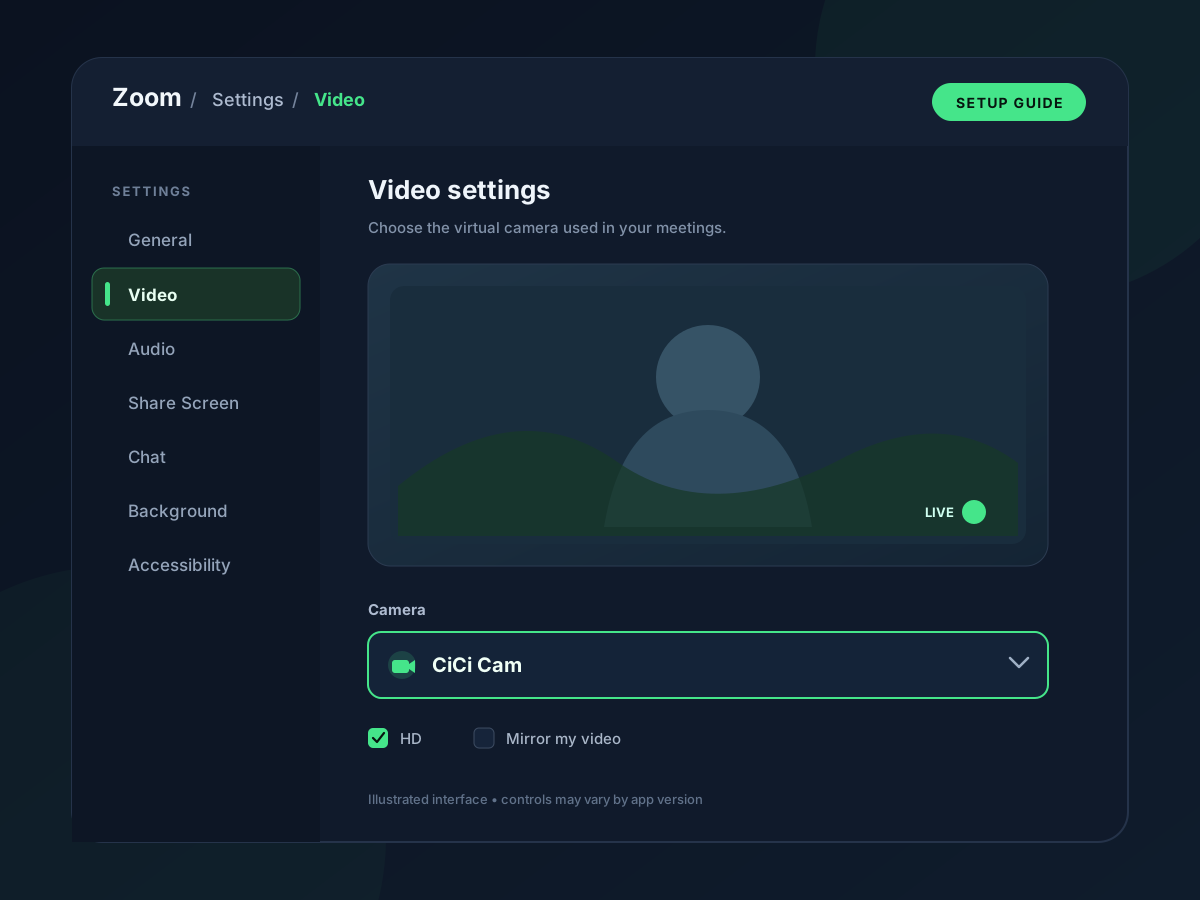
Choose your physical webcam in CiCi Cam, apply a color filter or adjust skin, makeup, facial lighting, and face shape, then select CiCi Cam in Zoom under Settings → Video & effects → Camera. Keep CiCi Cam running during the call: it creates the filtered video, and Zoom receives that video as its camera input. Check the Zoom preview before joining and reduce overlapping beauty effects.
Last reviewed:
Download from the homepage and run the installer. CiCi Cam registers itself as a system-wide virtual camera you can select inside Zoom.
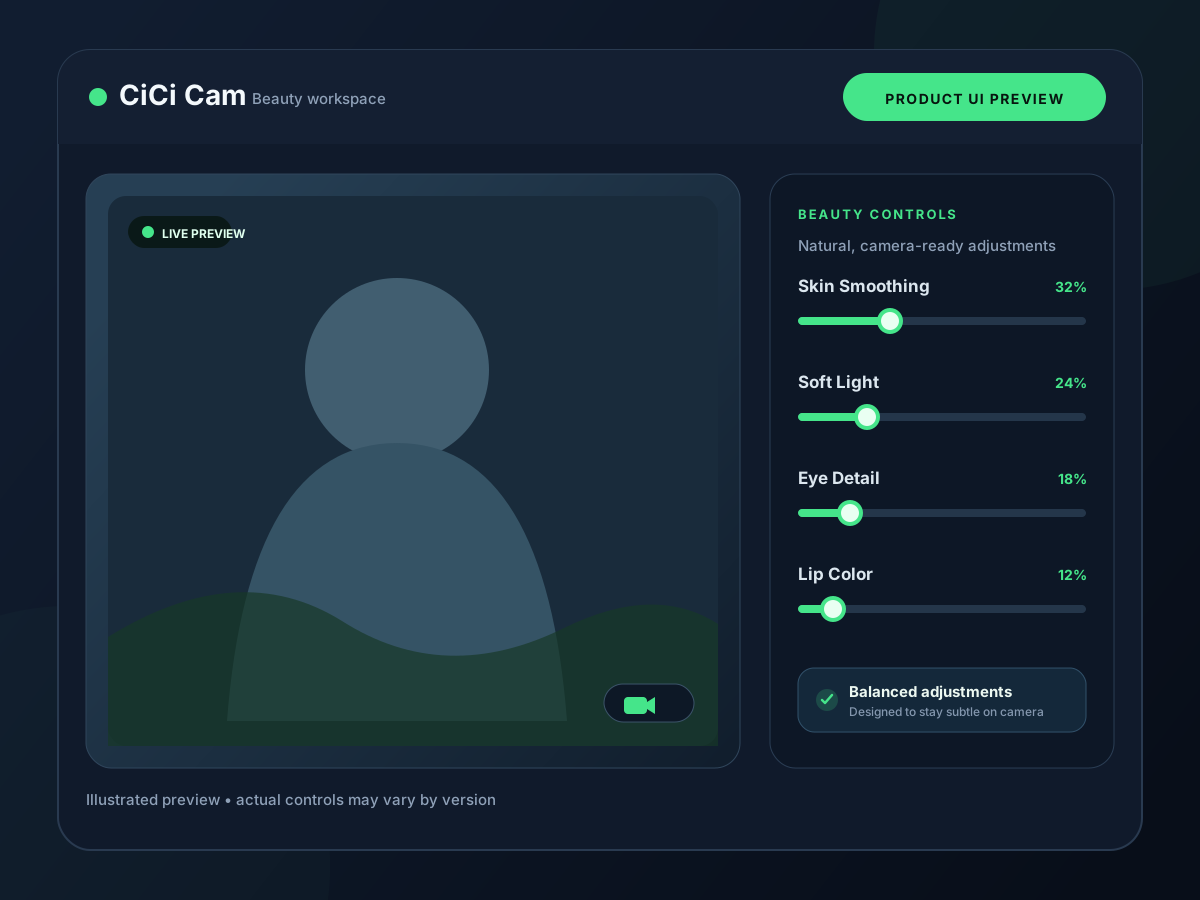
Open CiCi Cam, choose your physical camera in the source dropdown. The app applies the beauty pipeline in real time and pushes the cleaned feed to the virtual camera output.
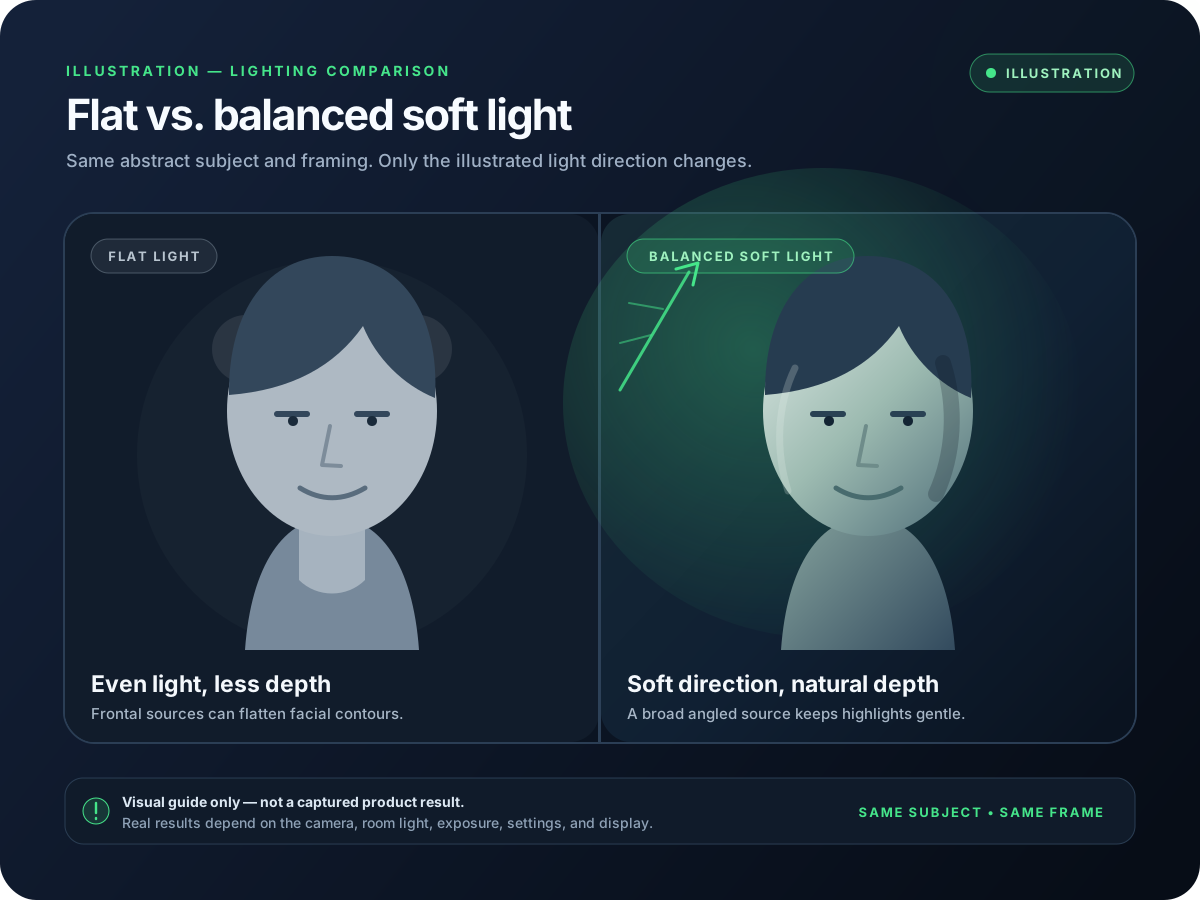
Use light smoothing and facial soft light first; add subtle eye, lip, or blush makeup; finish with a filter that matches your room lighting.
Open your profile menu, then Settings → Video & effects → Camera and select “CiCi Cam.” Check the final Zoom preview before joining a call.
Setup visuals and product previews
Touch up my appearance and Adjust for low light can improve a Zoom call, but those settings do not follow your webcam into OBS, Teams, recording tools, or browser-based calls.
Running strong smoothing, low-light correction, filters, and background effects in more than one app can flatten detail or shift color. A clear processing order makes the result easier to control.
Window light, overhead bulbs, and monitor light can produce different results from one call to the next. Saved CiCi Cam presets make those changes faster to handle.
Both approaches can improve a meeting preview. The practical difference is where the processing happens and whether the same result can be reused outside Zoom.
| Capability | Zoom built-in tools | CiCi Cam |
|---|---|---|
| Where the effect runs | Inside the Zoom desktop or mobile app | Before the feed reaches Zoom, through a system virtual camera |
| Appearance controls | Touch up my appearance provides adjustable soft focus; available effects depend on the Zoom client and account settings | Separate controls for skin, facial soft light, makeup, face shape, and color presets |
| Lighting correction | Adjust for low light is available in supported Zoom desktop clients | Face-focused soft light and color adjustments are saved with the CiCi Cam preset |
| Reuse in other apps | Zoom settings apply only in Zoom | The same virtual-camera output can be selected in other compatible camera apps |
| Best fit | A quick improvement needed only for Zoom | A more configurable look that must remain consistent across several apps |
Zoom administrators can control the availability of some video effects. Menu names and available effects can change between Zoom versions.
Use one primary appearance pipeline, verify it in Zoom's own preview, and add Zoom-specific effects only when they solve a separate problem.
If smoothing is already configured in CiCi Cam, start with Touch up my appearance disabled or set very low. Add it only after checking facial detail in the Zoom preview.
Use CiCi Cam for the camera image and Zoom for virtual backgrounds, framing, or meeting-specific effects. This makes it easier to identify which app caused an unwanted change.
For troubleshooting, begin at 1280 × 720 and 30 fps. Increase resolution only after the CiCi Cam and Zoom previews remain smooth on the actual computer and network.
Always judge the result under Zoom → Video & effects, not only in CiCi Cam. Zoom may add low-light adjustment, background processing, mirroring, or other presentation changes.
Most setup failures come from the wrong device being selected, another app holding the physical webcam, or two layers of effects being applied at once.
Quit Zoom completely, open CiCi Cam and confirm its preview is running, then reopen Zoom. Also check operating-system camera permissions and any company policy that restricts virtual cameras.
Open Zoom's Camera menu and select CiCi Cam instead of the physical webcam. The physical device should be the input in CiCi Cam; CiCi Cam should be the input in Zoom.
Close other camera apps and confirm only CiCi Cam is opening the physical webcam. Then verify that CiCi Cam's own preview is live before troubleshooting Zoom.
Temporarily disable Zoom's Touch up my appearance and Adjust for low light. Establish a neutral CiCi Cam feed first, then add one Zoom-specific adjustment at a time.
Built-in filters can depend on the Zoom version, device, region, and account settings. CiCi Cam uses the Camera selector, so a missing Video filters option is a separate issue from a missing virtual camera. On managed devices, check whether desktop software and virtual cameras are permitted.
A detailed look at what Zoom's native appearance control changes and when a virtual camera is useful.
Work through restart order, camera permissions, device selection, and application conflicts.
Fix camera position and physical lighting before relying on software correction.
Zoom feature names and the camera-selection path were checked against Zoom Support. CiCi Cam requirements and processing behavior are based on the current product specification; performance remains hardware-dependent.
Install on Windows or Mac, build your preset, and use it in every video app.
Download CiCi Cam Free