


Open the apps in signal order
Start the physical webcam in CiCi Cam first, confirm the processed preview, then open Discord and select the CiCi Cam virtual camera.
Quick answer
CiCi Cam applies skin, facial-lighting, makeup, face-shape, and color adjustments before Discord receives your video. Build one restrained preset on your computer, then select CiCi Cam in Discord desktop as the camera. This workflow supports Windows 10/11 x64 and macOS 14+ on Apple Silicon; it does not add a camera filter to Discord mobile.
Discord desktop on Windows 10/11 or macOS 14+ on Apple Silicon · Not a Discord mobile filter
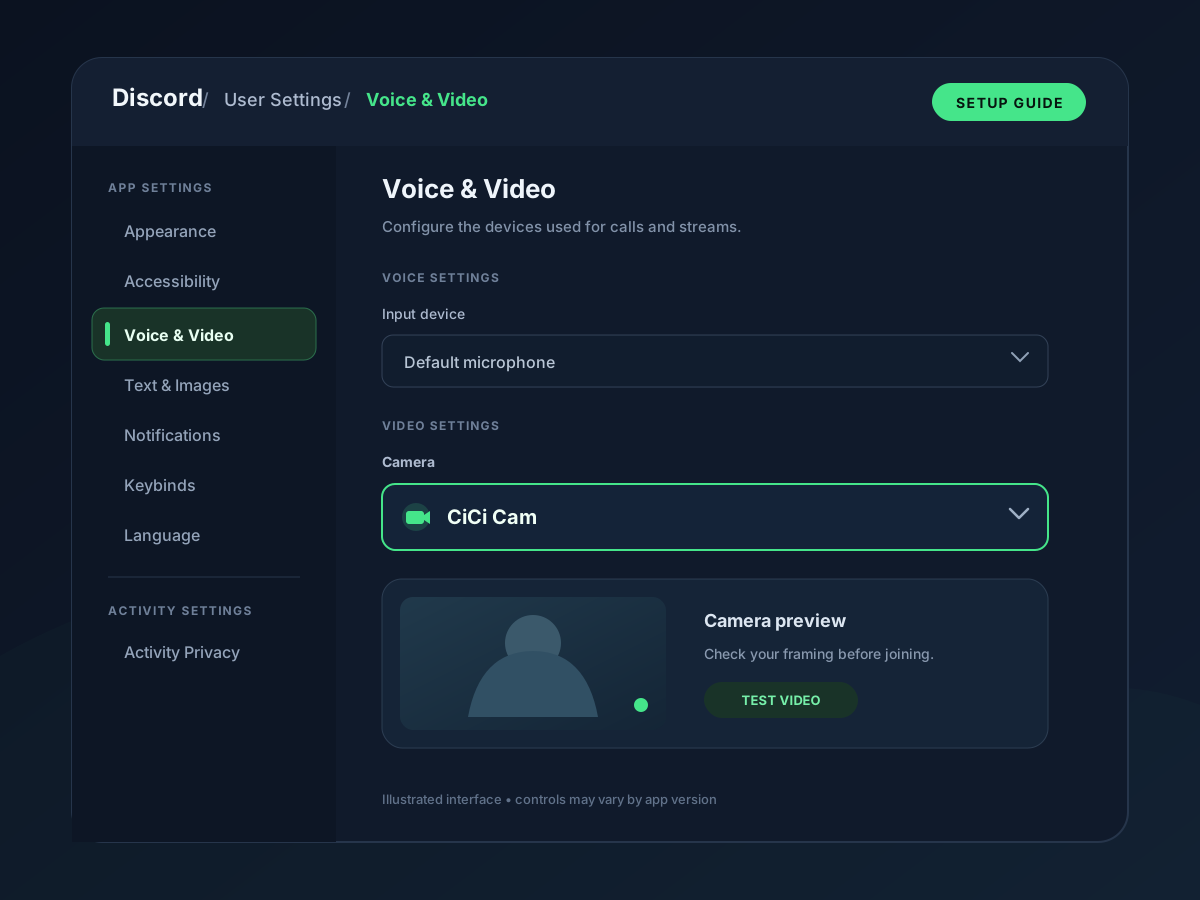
Set your filters and beauty effects in CiCi Cam, then select CiCi Cam under Discord → User Settings → Voice & Video → Camera. The signal path is physical webcam → CiCi Cam processing → CiCi Cam virtual camera → Discord desktop. Keep CiCi Cam open, check Discord's preview, and turn on your camera in the call to share the processed video.
Last reviewed:
Use Windows 10/11 x64 or macOS 14+ on Apple Silicon. Select your physical webcam in CiCi Cam and confirm that its preview moves normally.
Start with facial light and light skin smoothing, then add makeup, face-shape, or color adjustments only where they solve a visible problem. Keep texture visible while you move and speak.
Open User Settings → Voice & Video and choose CiCi Cam in the Camera dropdown. Use Test Video or the available camera preview to inspect the filtered image. The physical webcam is the input in CiCi Cam; CiCi Cam is the camera selected in Discord.
Join a direct-message call or server voice channel and turn on your camera to share the filtered video. Keep CiCi Cam running. Screen sharing sends the selected screen or application separately; it does not apply your camera filter to that content.
Setup visuals and product previews
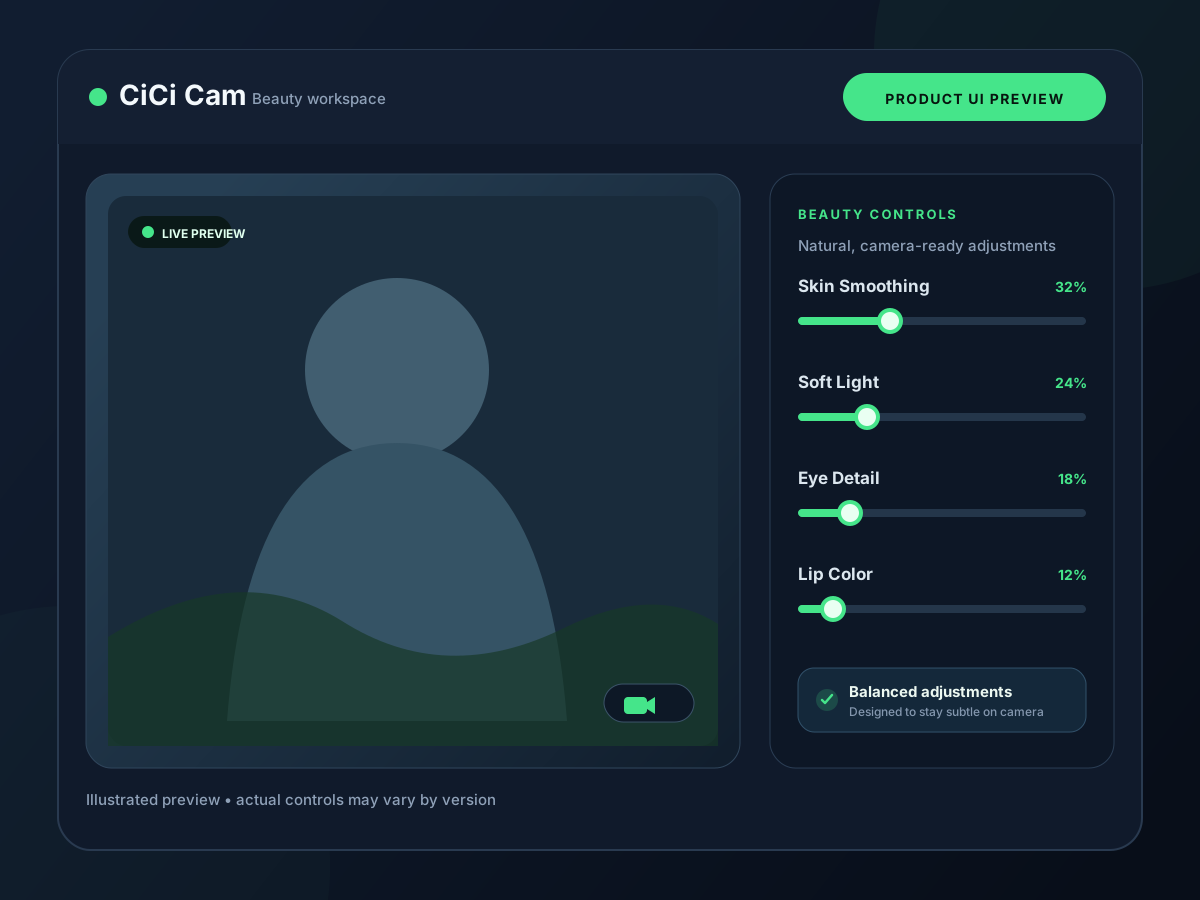
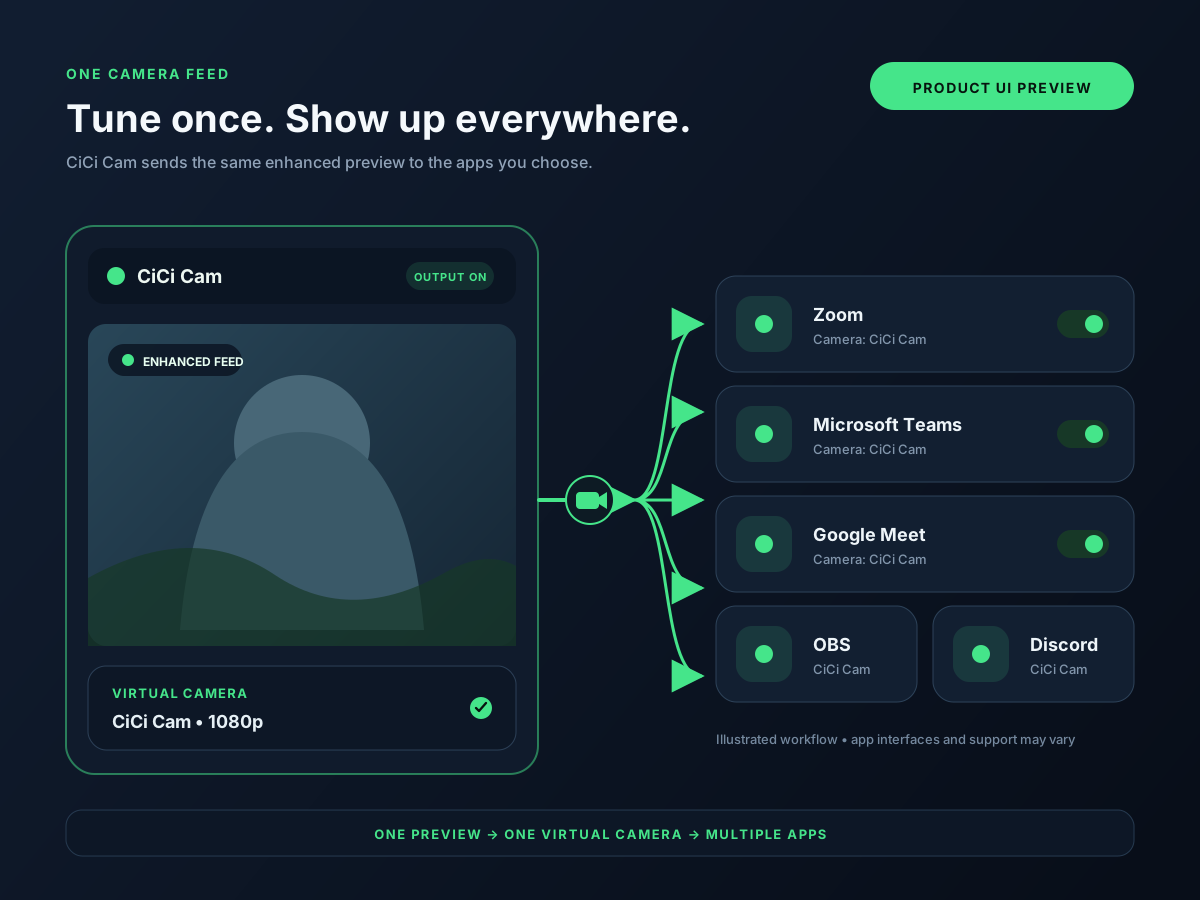
Beauty, lighting, makeup, face-shape, and filter processing runs on your computer rather than uploading the webcam feed for cloud processing.
Adjust skin, facial light, makeup, face shape, and color independently instead of relying on one strength control for the whole image.
The same CiCi Cam preset can be selected in other compatible desktop camera apps without rebuilding the appearance settings inside each destination.
Discord documents video backgrounds and camera settings, but those features do not provide CiCi Cam's separate skin, makeup, face-shape, facial-lighting, and color controls.
Discord builds its camera list when the client starts. If CiCi Cam was installed while Discord was open, fully quit and reopen Discord before checking the Camera menu again.
Cropping, mirroring, backgrounds, low light, and connection quality can change the final result. Tune the source in CiCi Cam, then judge the complete image in Discord's own preview.
Discord's documented background tools change or blur the scene behind you. CiCi Cam processes the webcam before Discord receives it and provides separate face-aware appearance controls. Use only the layers you need and check Discord's final preview to avoid over-processing.
Choose the smallest setup that solves the visible problem, then verify it in Discord's final preview.
| Option | Where it runs | Best for | Main limitation |
|---|---|---|---|
| Raw physical webcam | Directly in Discord | The simplest setup when the camera and room already look good | No reusable CiCi Cam appearance preset |
| Discord background tools | Inside Discord | Blurring or replacing the scene behind the subject | Does not provide CiCi Cam's separate face-aware controls |
| CiCi Cam virtual camera | On the desktop before Discord receives the feed | Skin, facial light, makeup, face-shape, and color adjustments | Requires desktop installation, permissions, and a compatible camera menu |
Discord features, menu labels, browser behavior, and managed-device policies can change. Confirm the available camera and preview in the client you will actually use.
Start the physical webcam in CiCi Cam first, confirm the processed preview, then open Discord and select the CiCi Cam virtual camera.
Let CiCi Cam handle the main appearance preset. Add a Discord background only when it solves a separate scene problem, and retest motion after combining them.
Use Discord's preview or a private test call to check crop, mirror behavior, edges, facial detail, and motion before joining a live conversation.
Know where to switch Discord back to the physical webcam if a permission, update, or device-list issue appears before a call.
Work from the source toward Discord so each test identifies one part of the signal path.
Keep CiCi Cam open, completely quit Discord, reopen it, and check User Settings → Voice & Video. If it is still missing, verify operating-system camera permission and restart the computer after installation or an update.
Check the CiCi Cam preview first. If it is also affected, close other apps using the physical webcam. If CiCi Cam is healthy, reselect the virtual camera in Discord and test without a Discord background.
Disable extra effects temporarily, test a lower camera resolution or frame rate, close high-load applications, and compare the CiCi Cam preview with Discord. Use the lagging guide to isolate the slow stage.
Return CiCi Cam controls toward neutral, disable Discord background processing temporarily, and add adjustments back one at a time while watching Discord's preview.
Check that Discord has CiCi Cam selected instead of the physical webcam. Confirm you are viewing the camera video, not a screen share. If the preview works but you cannot send video in a server voice channel, check that your server role allows video.
Follow the shared setup path for Discord, OBS, and Teams.
Isolate camera, processing, virtual-device, and destination-app delay.
Check app restart order, camera permissions, device registration, and camera conflicts.
Understand how one processed desktop camera feed can be reused.
Discord camera selection, permissions, video backgrounds, and official troubleshooting guidance were checked against Discord Support. Product requirements were checked against CiCi Cam's current download and release information.
Install CiCi Cam on a supported Windows PC or Apple Silicon Mac, build a natural preset, and select it in Discord desktop.
Download CiCi Cam Free