


Match the LIVE quality settings
TikTok advises choosing a camera resolution and FPS that match or remain below the LIVE quality settings. Avoid asking the camera source to deliver a mode the stream will immediately rescale.
Quick answer
Build your on-camera look in CiCi Cam before you go live, then send the finished feed to TikTok LIVE Studio as a camera source. Natural smoothing, relighting, makeup, face refinement, and saved presets stay consistent across portrait and landscape scenes without rebuilding the look inside every scene.
Windows 10/11 · macOS 14+ on Apple Silicon · Confirm the camera workflow in your current LIVE Studio setup
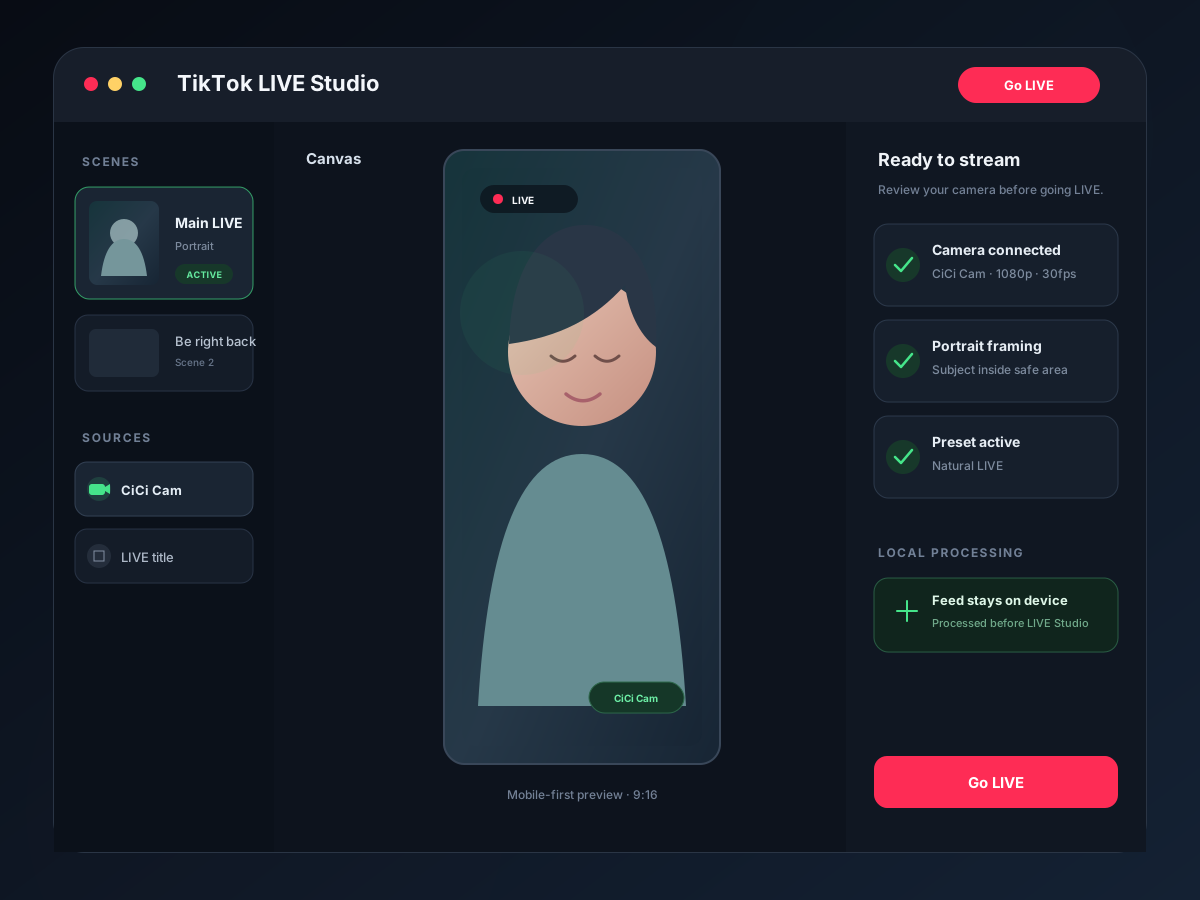
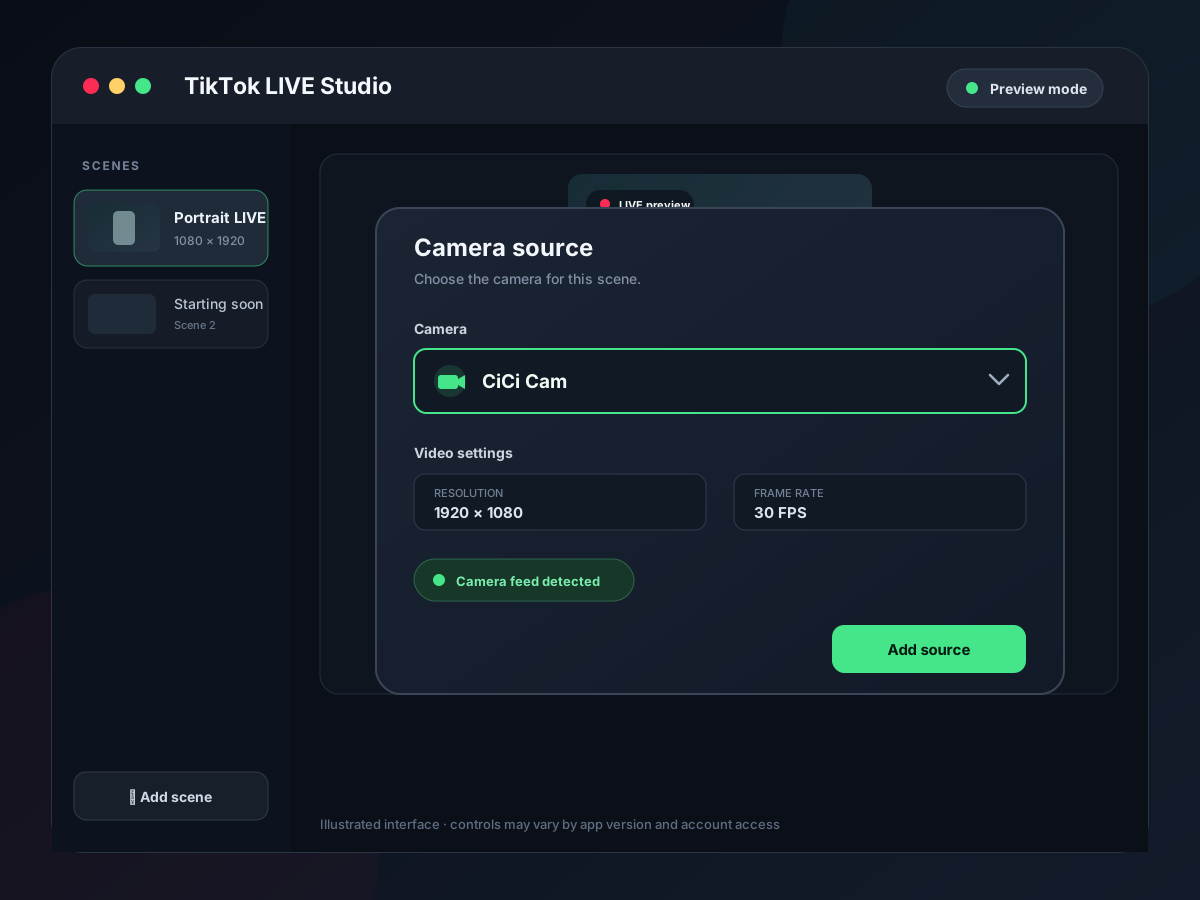
CiCi Cam turns a processed physical webcam into a camera device that TikTok LIVE Studio can add through Add source → Camera. Build the look in CiCi Cam, select CiCi Cam in the LIVE Studio camera settings, then use LIVE Studio for framing, scenes, audio, and stream output.
Last reviewed:
Install CiCi Cam on the same Windows or Mac computer that runs TikTok LIVE Studio. The installer adds CiCi Cam as a virtual camera device.
Choose your physical webcam in CiCi Cam, then tune smoothing, relighting, makeup, face shape, and color. Save the result so the look is ready for every stream.
Open your scene in TikTok LIVE Studio, choose Add source, then Camera. Select “CiCi Cam” from the available camera devices.
Check framing and intensity in LIVE Studio's mobile preview, match the camera resolution and frame rate to your LIVE settings, then reuse the same source across scenes.
Setup visuals and product previews
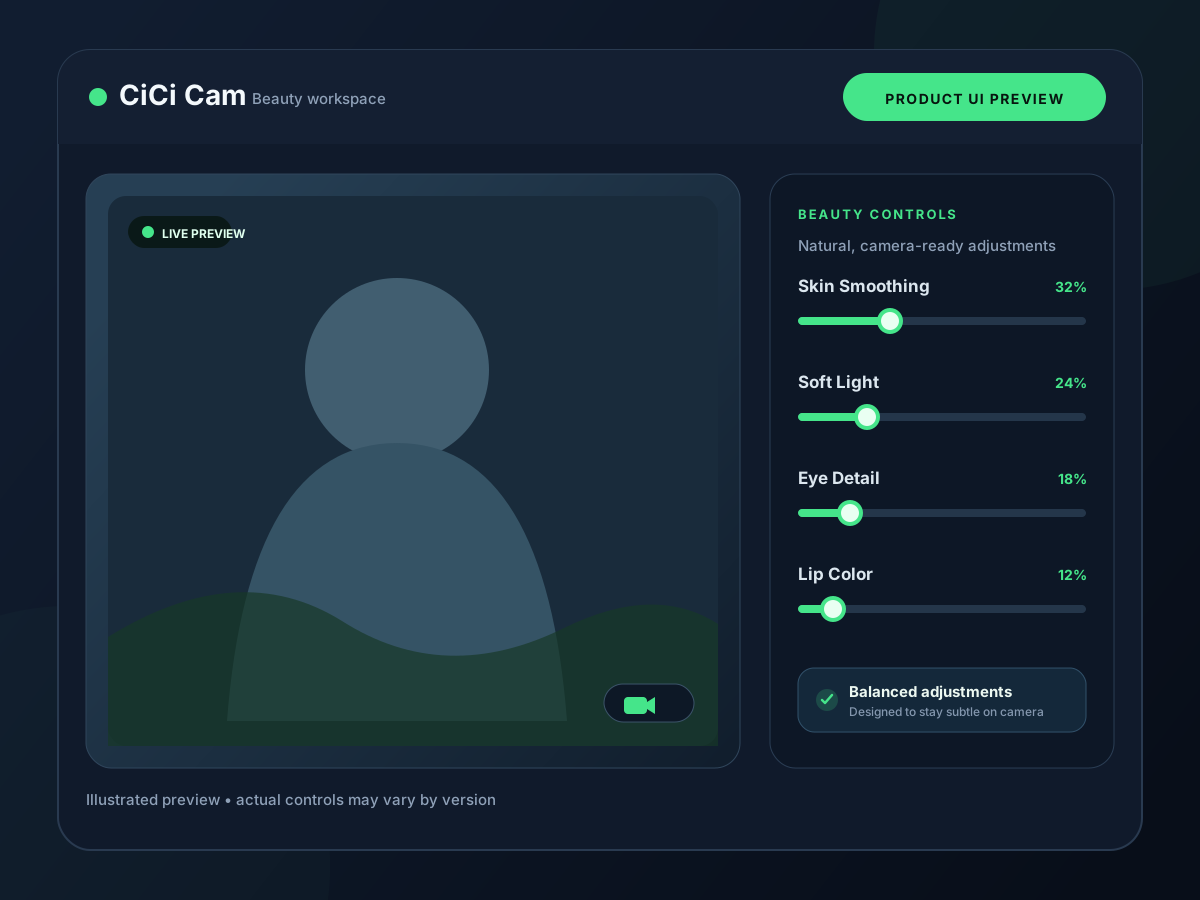
Save separate looks for daylight, evening streams, product demos, and full-screen facecam scenes.
Balance smoothing, subtle makeup, face refinement, and eye detail without forcing an exaggerated effect.
Compensate for dim rooms, mixed color temperatures, and monitor light before the feed reaches LIVE Studio.
CiCi Cam processes the webcam feed on your computer and outputs it directly as a virtual camera.
When camera adjustments live inside individual scenes, it is easy for an intro, gameplay layout, and full-screen chat scene to use different settings. A single virtual camera keeps the source consistent.
Window light, overhead bulbs, and bright monitors can change skin tone and exposure throughout a stream. CiCi Cam lets you correct the feed before LIVE Studio receives it.
CiCi Cam gives you one reusable beauty and color preset for TikTok LIVE Studio, OBS, video calls, and recordings instead of recreating a look for each app.
The cleanest workflow gives each application one responsibility. This reduces duplicate effects and keeps a saved camera look consistent when the LIVE layout changes.
| Task | CiCi Cam | TikTok LIVE Studio |
|---|---|---|
| Physical webcam input | Selects and processes the physical camera | Selects CiCi Cam as the Camera source |
| Beauty and facial lighting | Skin, facial soft light, makeup, face shape, and a saved color preset | Optional Enhance, Effects, and Filters; keep them light if CiCi Cam already handles the look |
| Scene composition | Outputs a camera feed | Positions and crops the camera with gameplay, chat, images, text, and other sources |
| Resolution and frame rate | Provides the virtual-camera video mode | Camera resolution and FPS should match or stay below the LIVE quality settings |
| Audio | Camera-video processing only | Microphone, desktop audio, and the final LIVE mix |
TikTok recommends 60 fps for smoother video and 30 fps for better camera-effect performance. Choose the rate the complete computer can sustain.
Build the camera look before adding it to scenes, then verify the final mobile-first composition and stream settings inside LIVE Studio.
TikTok advises choosing a camera resolution and FPS that match or remain below the LIVE quality settings. Avoid asking the camera source to deliver a mode the stream will immediately rescale.
Use 60 fps when smooth motion is the priority and the computer can sustain it. Use 30 fps when camera-effect performance, stability, or lower system load matters more.
Reuse the same CiCi Cam source, but inspect its crop in intro, gameplay, full-screen chat, portrait, and landscape scenes. A consistent source can still be framed differently in each layout.
If CiCi Cam already supplies smoothing, makeup, and relighting, begin with LIVE Studio Enhance and Filters disabled. Add a TikTok-specific effect only after the base feed looks natural.
Check that LIVE Studio is using the CiCi Cam virtual camera, not the phone camera or the raw physical webcam.
Close LIVE Studio, open CiCi Cam and confirm its preview is active, then reopen LIVE Studio and add the Camera source again. Check your operating-system camera permissions if the device remains unavailable.
A desktop virtual camera cannot be selected by the TikTok mobile app. Use this workflow in TikTok LIVE Studio on the same Windows or Mac computer.
Open the Camera source transform in LIVE Studio and fit or reposition it for the scene. Check the crop again in the mobile preview instead of assuming a landscape camera frame will fit 9:16.
Try 30 fps, reduce duplicate enhancement layers, match the camera resolution to the LIVE quality, and test a representative scene with gameplay and widgets running.
Build a repeatable pre-stream routine for lighting, camera settings, presets, and scene checks.
Balance smoothing, facial light, makeup, color, and camera distance for long streams.
Diagnose restart order, camera permissions, device conflicts, and missing camera entries.
The Camera source path, resolution/FPS guidance, and scene responsibilities were checked against the TikTok LIVE Studio Help Center. Account access and available LIVE features are controlled by TikTok and can vary.
Install on Windows or Mac, build your LIVE preset, and select CiCi Cam as the camera in TikTok LIVE Studio.
Download CiCi Cam Free