Buying Guide · 2026

Best Virtual Camera Software for PC and Mac

Quick answer

Choose OBS Studio for free scene composition, CiCi Cam for webcam beauty, Camo for a phone-camera setup, ManyCam for presentations, or NVIDIA Broadcast for RTX-powered cleanup. Compare their free options, system requirements, and main trade-offs below.

CiCi Cam: Windows 10/11 · macOS 14+ on Apple Silicon · Virtual-camera support can vary by app or device policy

Virtual camera software compared by workflow

Last reviewed:

Start with the job you need the camera to do, then check your computer and the free option. These five apps serve different workflows.

CiCi Cam

Best for
Natural skin, makeup, face-shape, lighting, and color controls
Platform and output
Windows 10/11 x64; macOS 14+ on Apple Silicon
Free option
SD/HD output; daily free usage limits for effects
Main trade-off
Focused on appearance rather than multi-scene production, phone capture, or a large AR library
OBS Studio

Best for
Free scene composition, sources, overlays, and streaming workflows
Platform and output
Windows 10/11; macOS 13+; Linux
Free option
Free and open source
Main trade-off
Powerful production interface but no native beauty or makeup workflow

ManyCam

Best for
Presentations, multiple sources, backgrounds, and live-video layouts
Platform and output
Windows and macOS; check requirements for your release
Free option
Free download; paid plans remove the logo and unlock more features
Main trade-off
Capabilities and output limits vary by plan; broader interface than a focused camera enhancer

Camo

Best for
Using a phone, webcam, DSLR, or connected camera with manual image controls
Platform and output
Windows 10+; macOS 12.3+
Free option
Free at 720p or below; Pro unlocks 1080p and 4K
Main trade-off
Free and Pro capabilities differ; phone workflows also depend on the mobile device and connection

NVIDIA Broadcast

Best for
AI noise removal, background effects, auto framing, and video cleanup
Platform and output
Windows 10 64-bit; GeForce RTX 2060 or eligible Quadro/TITAN RTX and newer
Free option
Free download; requires a supported RTX GPU
Main trade-off
Requires eligible RTX hardware and is not a general scene compositor or dedicated beauty tool

Check the current vendor requirements and your exact destination app. A product supporting an operating system does not guarantee that every browser, managed device, or camera application will accept its virtual output.

What to check before choosing

“Virtual camera” describes an output, not one feature set

OBS can send a composed scene, Camo can turn a phone or camera into a controlled feed, and CiCi Cam focuses on appearance enhancement. The same camera dropdown can hide very different workflows.

Platform and hardware limits eliminate options quickly

NVIDIA Broadcast requires a supported RTX Windows PC, while OBS, ManyCam, Camo, and CiCi Cam cover different desktop platforms. Version, architecture, and managed-device policy still matter.

Compatibility must be tested end to end

A virtual device is useful only when the destination app can select it. Browser permissions, operating-system camera access, app restart order, resolution, and competing camera apps can all affect the result.

Test your virtual camera in four steps

  1. 1

    Define the output you need

    Choose natural appearance enhancement, scene composition, presentation sources, phone-camera control, or AI background and audio cleanup. This determines the right product category before features or price enter the decision.

  2. 2

    Check OS, hardware, and plan limits

    Verify the vendor's current Windows, macOS, or Linux requirements, processor or GPU restrictions, free-tier limits, watermark rules, and whether installation is allowed on your computer.

  3. 3

    Verify the complete signal path

    Map physical camera or phone → processing app → virtual-camera output → destination app. Confirm that your exact meeting, streaming, browser, or recording app can select the output.

  4. 4

    Run the same practical test

    Use one camera, resolution, light, and destination app. Compare setup time, image detail, color, frame stability, CPU or GPU load, restart behavior, and whether the output survives a real call or recording.

See it in your workflow

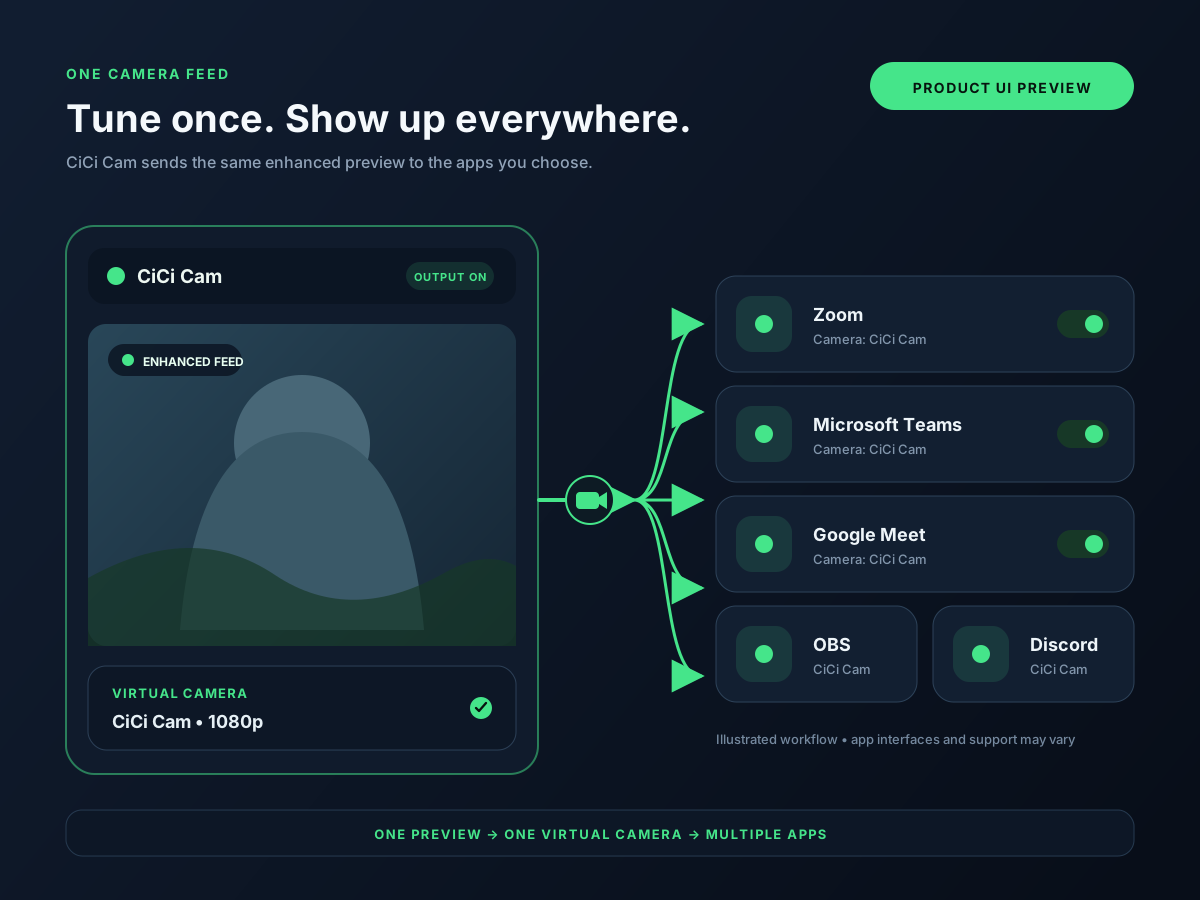
Setup visuals and product previews

One CiCi Cam feed shared across multiple video applications
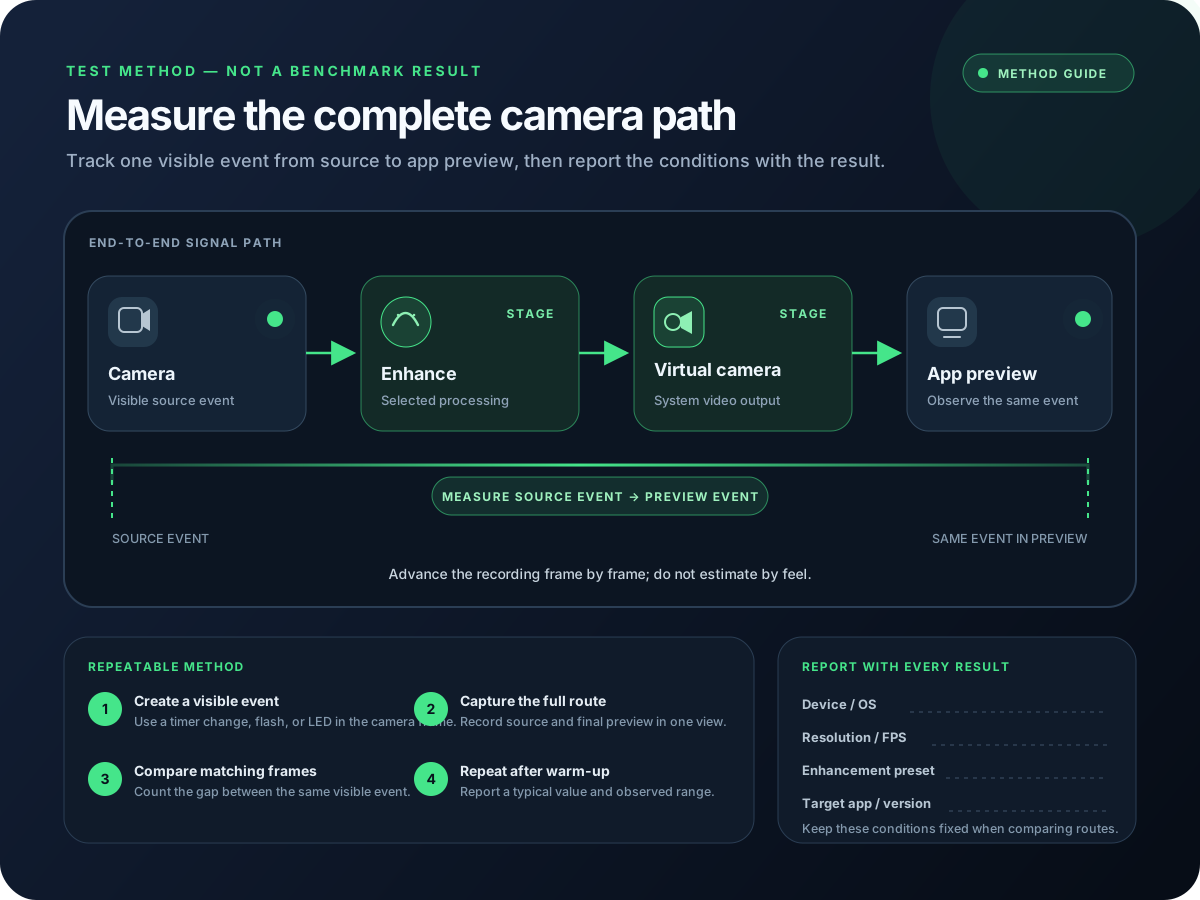
Trace the input, processing app, output device, and destination
Virtual camera latency measurement method diagram
A reproducible way to measure each stage without inventing a score
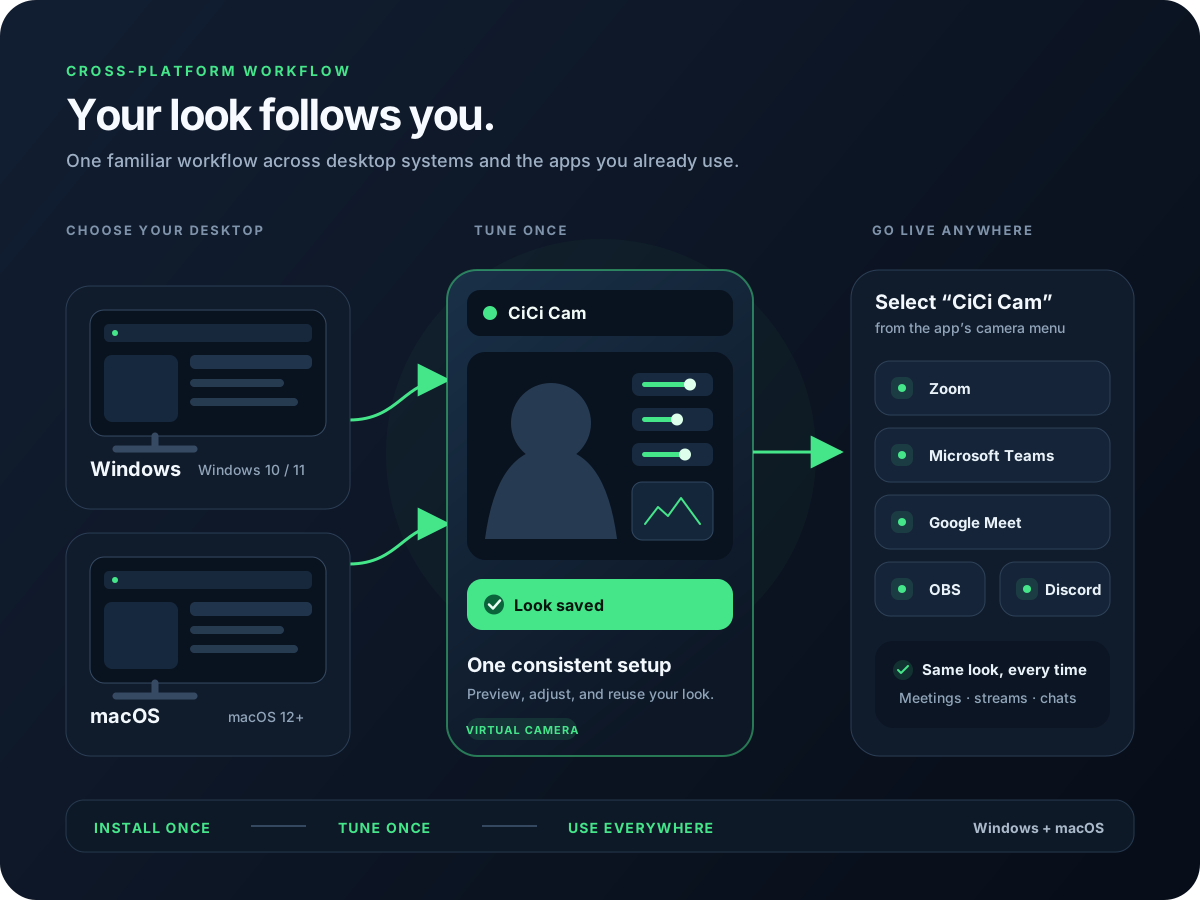
Windows and macOS virtual camera workflow illustration
Confirm current requirements before installing or paying

Common virtual camera problems

Missing devices and unstable video usually come from installation state, permissions, competing camera access, or an unsupported destination.

The virtual camera is missing

Confirm the output is enabled, quit and reopen the destination app, and check operating-system camera or extension permissions. Some apps build their camera list only when they start.

The physical camera is busy

Close other camera apps, then open the processing tool first and the destination second. Test the physical camera directly to isolate which stage cannot acquire it.

Video lags or drops frames

Reduce resolution or frame rate, disable one effect at a time, and watch CPU or GPU use. Composition, background segmentation, and AI cleanup can have very different hardware costs.

A managed device blocks installation

Do not assume the virtual camera can be installed without approval. Ask IT whether desktop apps, drivers, or camera extensions are allowed and keep the physical webcam as a fallback.

Frequently asked questions

Is a virtual camera the same as a webcam filter?
Not exactly. A virtual camera is how the processed feed reaches your apps. A webcam filter is the effect itself. CiCi Cam does both — it applies the filter and exposes the result as a virtual camera.
What is the best virtual camera software in 2026?
It depends on the task. CiCi Cam targets natural appearance controls, OBS Studio handles free scene composition, ManyCam serves presentation and multi-source workflows, Camo emphasizes phone and camera control, and NVIDIA Broadcast provides RTX-powered cleanup on supported Windows PCs.
Is there free virtual camera software?
OBS Studio is free and open source. CiCi Cam offers SD/HD output with daily free usage limits for effects. Camo is free at 720p or below; Pro unlocks higher resolutions. ManyCam offers a free download with paid upgrades, while NVIDIA Broadcast is free for supported RTX PCs. Choose by the output and hardware you need.
Which virtual camera software works on Mac?
CiCi Cam requires macOS 14 or later on Apple Silicon. Current OBS Studio supports macOS 13 or later, and Camo Studio supports macOS 12.3 or later. ManyCam also offers a Mac version; check its current release requirements. NVIDIA Broadcast is for supported RTX Windows PCs. After installation, select the virtual camera in your meeting or recording app.
Does virtual camera software work in browser calls?
Often, but not automatically in every browser or service. Restart the browser after installation, allow site and operating-system camera access, and test the exact service. Vendor compatibility lists and browser requirements can differ.
Will a virtual camera work on a managed work computer?
Only if organization policy allows the desktop app and camera component. Installation or system-extension approval may be restricted, so confirm with IT before depending on a virtual camera for an important call.

Try CiCi Cam free

Install on Windows or Mac, build your preset, and use it in every video app.

Download CiCi Cam Free