


Set a neutral physical-camera baseline
Place the camera at eye level, use soft front light, and verify focus and exposure before applying beauty controls. Software cannot fully repair poor source video.
Quick answer
Create a restrained appearance preset in CiCi Cam, then select its virtual camera in each compatible desktop app. Discord documents camera selection and video backgrounds, OBS accepts camera devices as Video Capture Device sources, and Teams already offers Soft focus and Adjust brightness. This hub shows the shared workflow and sends platform-specific searches to the detailed OBS, Teams, Zoom, and Google Meet guides.
Windows 10/11 · macOS 14+ on Apple Silicon · Virtual-camera support can vary by app or device policy
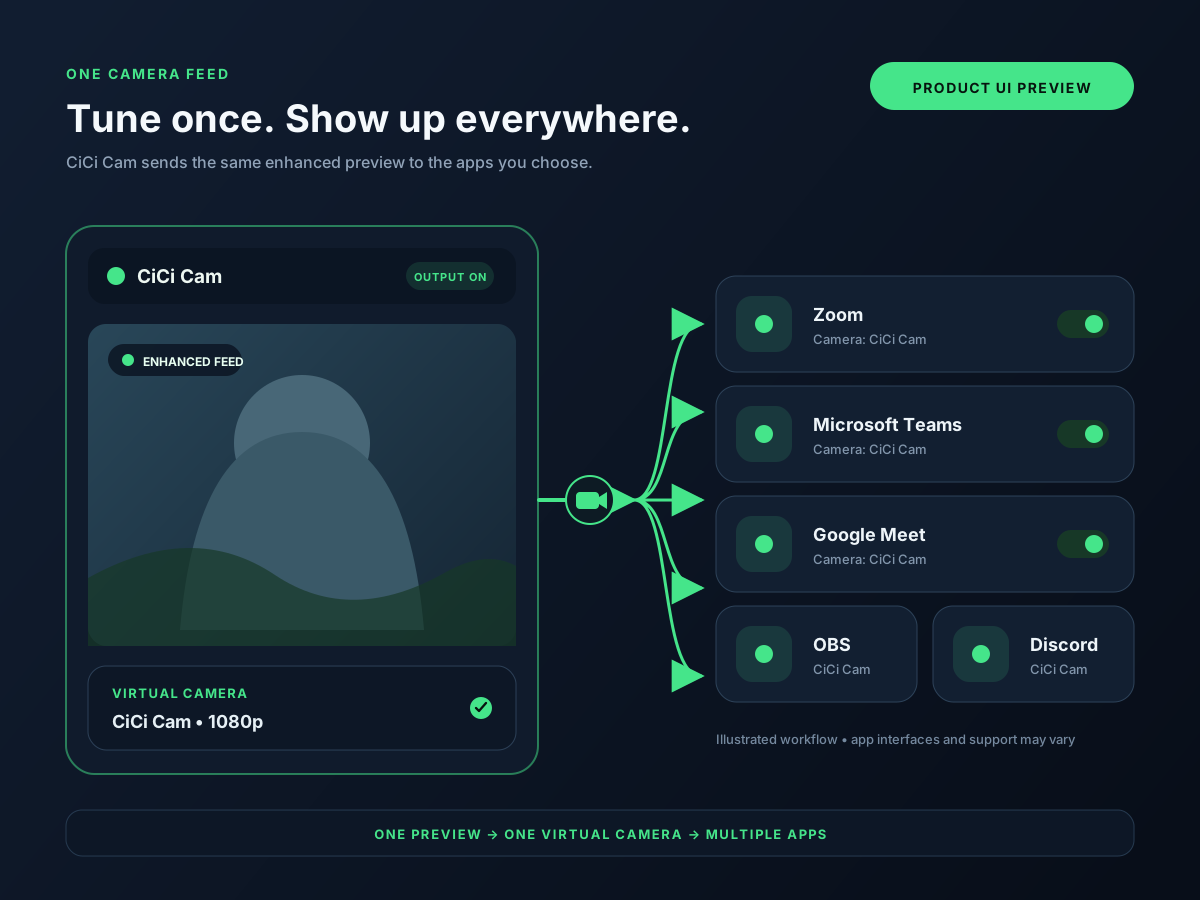
The shared setup is physical webcam → CiCi Cam processing → CiCi Cam virtual camera → Discord, OBS, Teams, Zoom, or Google Meet. The destination app still controls camera permission, device selection, preview, and any native effects. Use this hub for the common signal path and Discord steps; use the dedicated owner page when the query is specifically about OBS, Teams, Zoom, or Meet.
Last reviewed:
Discord documents desktop video backgrounds, Teams includes Soft focus and brightness adjustment, and OBS provides general source filters rather than a dedicated skin or makeup workflow. Check native controls before adding another layer.
Adding CiCi Cam to OBS makes it an input source. Starting OBS Virtual Camera sends an OBS scene outward to another app. These are different routes and may be used separately or in sequence.
CiCi Cam runs on Windows and Mac. Selecting its desktop camera output in Discord does not add that device to the Discord mobile app, so mobile searches need a different device-native workflow.
Open CiCi Cam on Windows or Mac, select the physical webcam, and adjust skin, facial lighting, makeup, face shape, and color. Confirm the preview before opening the destination app, and keep the physical webcam available as a fallback.
In the Discord desktop app, open User Settings → Voice & Video → Video, choose CiCi Cam from the Camera dropdown, and run the camera preview. If it is missing, fully quit and reopen Discord and check operating-system camera permission.
In Sources, select + → Video Capture Device, create or select a source, and choose CiCi Cam in Device. Match resolution and frame rate to the output. This brings CiCi Cam into OBS; Start Virtual Camera is a separate control that sends the composed OBS scene outward.
In the Teams desktop app, open Settings and more → Settings → Devices, then choose CiCi Cam under Camera and inspect the preview. Teams already includes Soft focus and Adjust brightness, so disable or reduce them while testing CiCi Cam to avoid double processing.
Setup visuals and product previews
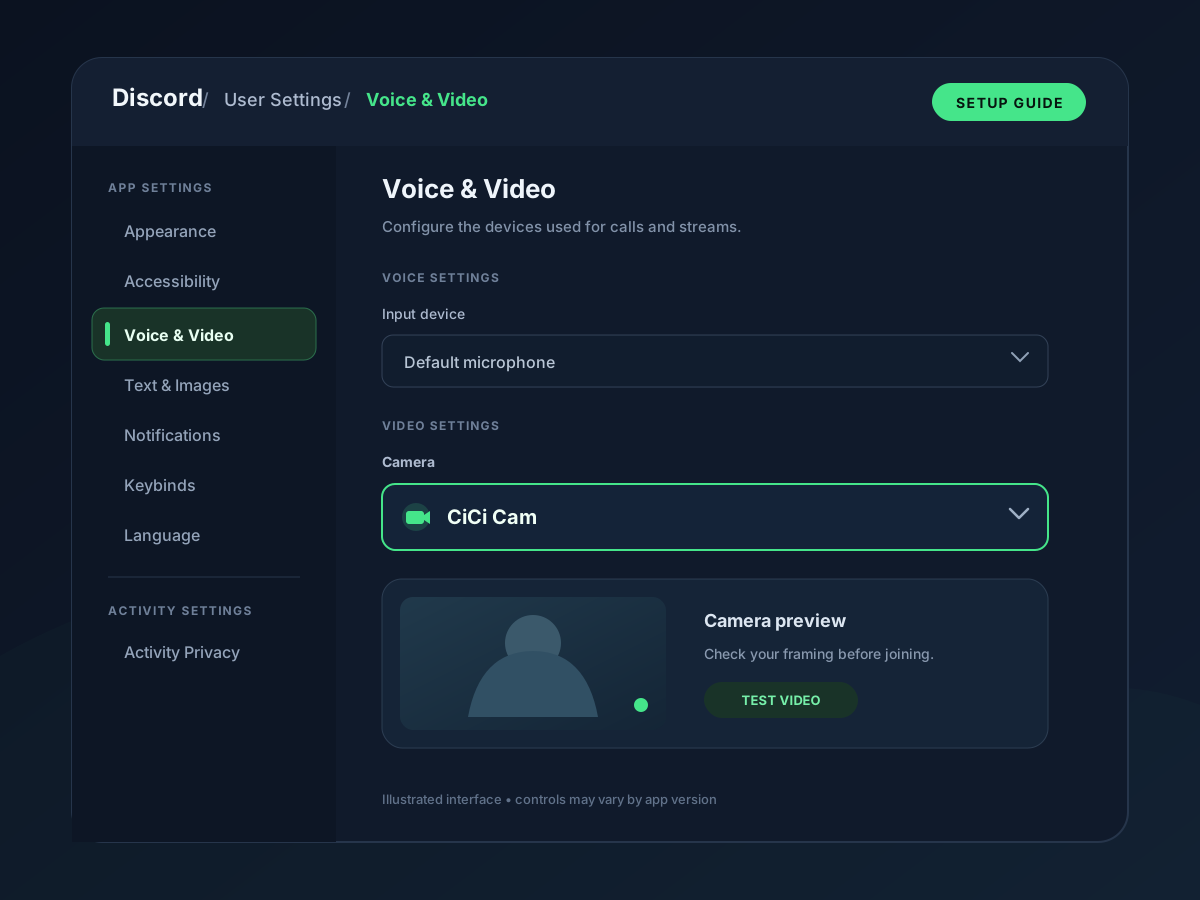
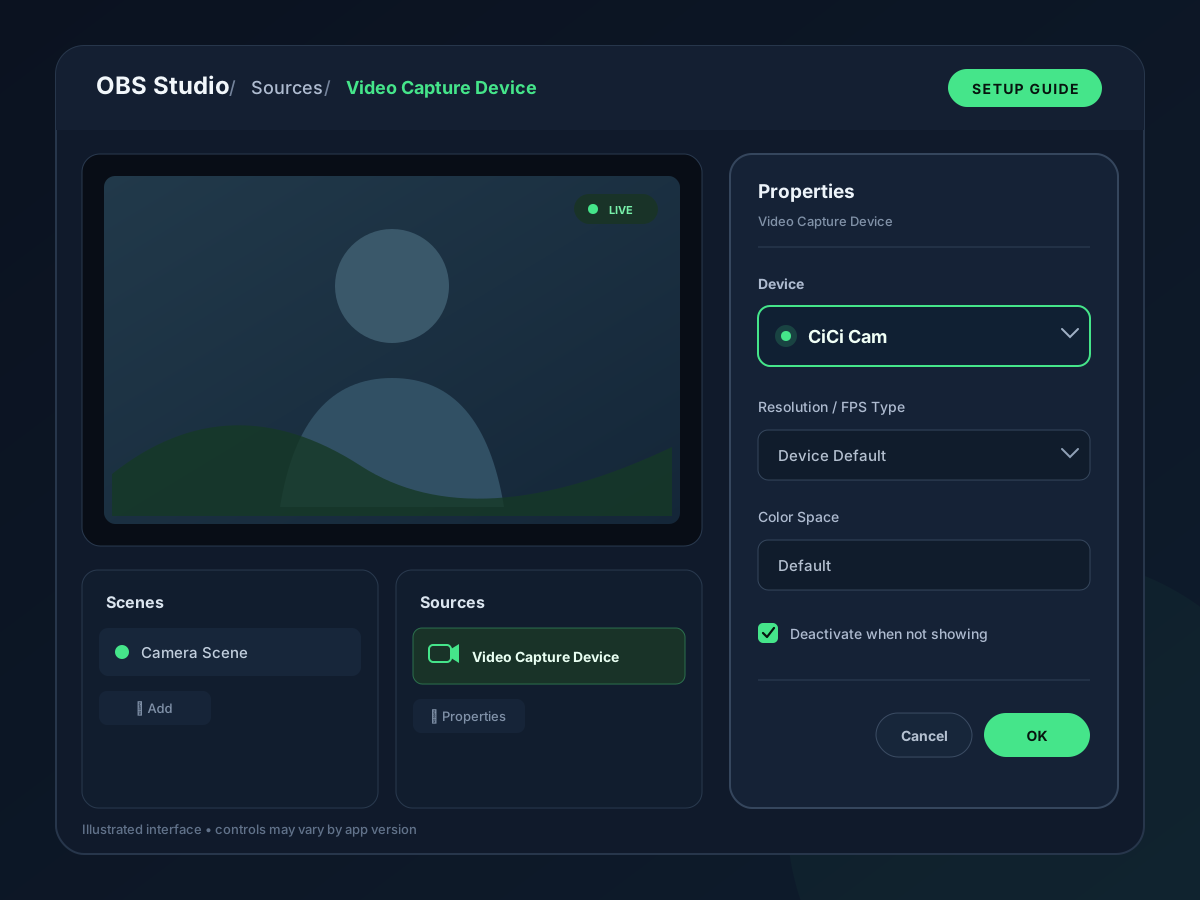
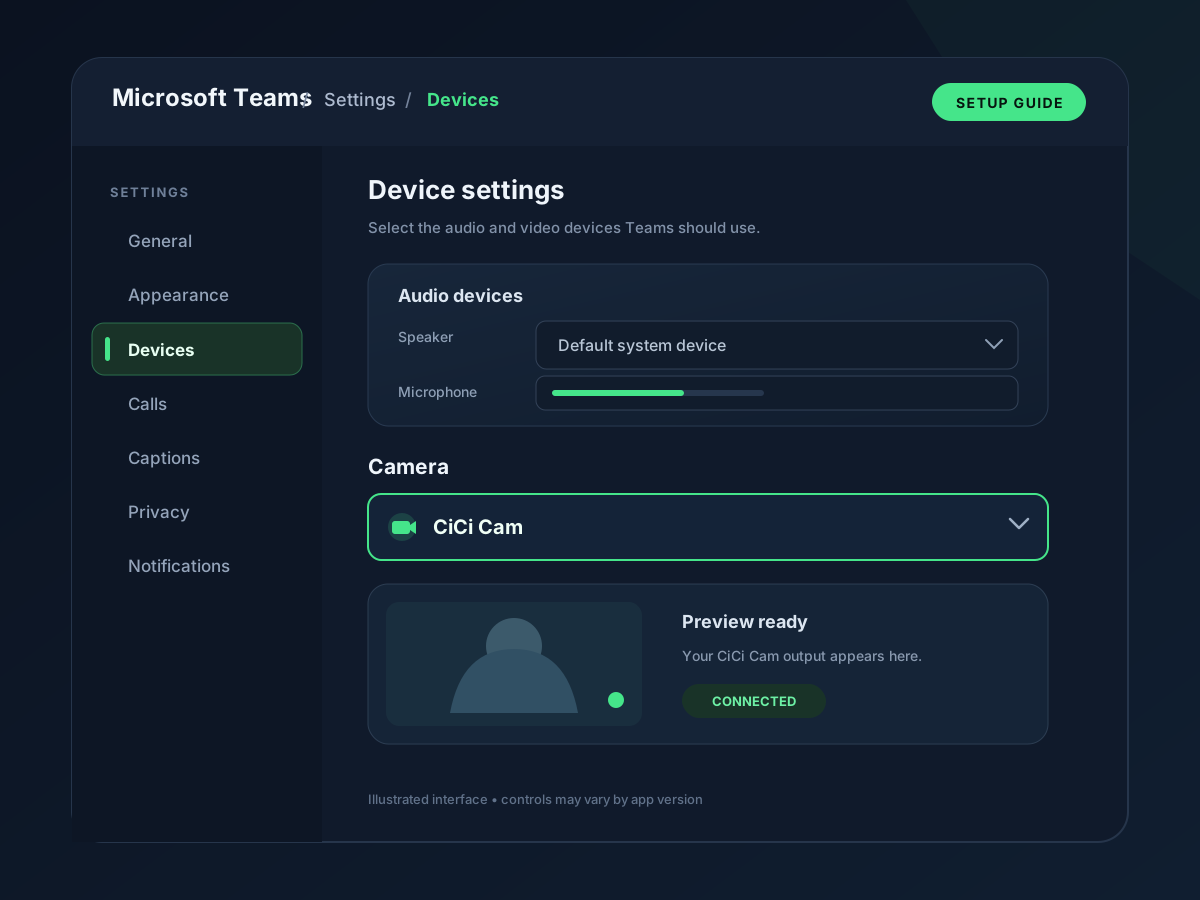
Tune the appearance once in CiCi Cam, then select its camera output in each compatible Windows or Mac application.
Use this page for the shared workflow and Discord setup; follow the dedicated OBS, Teams, Zoom, and Google Meet pages for deeper platform intent.
Discord backgrounds and Teams Soft focus or brightness can still be used, but test one processing layer at a time.
The guide covers stale device lists, camera access, another app holding the webcam, and the difference between desktop and mobile.
Each row shows the current native option, where to select CiCi Cam, and the detailed guide that owns platform-specific questions.
| Platform | Native option | CiCi Cam setup | Detailed guide |
|---|---|---|---|
| Discord desktop | Video backgrounds are documented; no dedicated skin or makeup control is documented | User Settings → Voice & Video → Video → Camera | This hub owns Discord camera-filter setup; the desktop route does not apply to Discord mobile |
| OBS Studio | General source filters and plugin support; no native skin or makeup workflow | Sources → + → Video Capture Device → Device | Use the Beauty Filter for OBS guide for virtual-camera input, source order, webcam enhancement, recording, and streaming intent |
| Microsoft Teams | Soft focus and Adjust brightness | Settings and more → Settings → Devices → Camera | Use the Microsoft Teams beauty-filter guide for native-vs-virtual-camera decisions |
| Zoom | Touch up my appearance, low-light adjustment, and eligible effects | Settings → Video & effects → Camera | Use the Zoom beauty-filter guide for current controls and setup |
| Google Meet | Portrait touch-up and, on eligible editions, AI-powered Makeup | Pre-join device menu or Settings → Video → Camera | Use the Google Meet beauty-filter guide for availability, extensions, and permissions |
Menus, native effects, account eligibility, and administrator policy can change. Recheck the linked official documentation and the final preview in the exact client you use.
Keep the signal path simple and let each platform-specific page own the details that can change independently.
Place the camera at eye level, use soft front light, and verify focus and exposure before applying beauty controls. Software cannot fully repair poor source video.
Build a restrained CiCi Cam preset, then turn off native smoothing, lighting, or filters during the first test. Add one native control only if it solves a separate problem.
Discord, OBS, and Teams may crop, mirror, scale, or process the feed differently. Confirm the final preview and make a short recording or test call where available.
Before an important meeting or stream, verify that both CiCi Cam and the physical webcam appear in the device list so you can switch if a virtual-camera component is blocked.
Most issues come from a stale camera list, missing permission, another app holding the physical webcam, or confusing an OBS input with its virtual output.
Confirm the CiCi Cam preview, quit the destination completely, reopen it, and check system camera permission. Browser clients may also need site permission.
Open the Video Capture Device properties, confirm CiCi Cam is selected, return Resolution/FPS Type to Device Default, and close other apps that may hold the physical camera.
Disable Discord backgrounds, Teams Soft focus or brightness, and any OBS source filters. Establish a neutral CiCi Cam image, then add one layer at a time.
For beauty inside OBS, select CiCi Cam as a Video Capture Device input. Start OBS Virtual Camera only when another application should receive the composed OBS scene.
Covers virtual-camera input, source order, webcam enhancement, recording, streaming, and troubleshooting.
Compare Soft focus and brightness with a desktop virtual-camera workflow.
Use Zoom's current appearance settings or select a reusable virtual camera.
Compare Portrait touch-up, eligible Makeup, extensions, and a virtual camera.
Discord camera selection and backgrounds, OBS Video Capture Device and Virtual Camera directions, Teams native video controls, and the current Zoom and Google Meet paths were checked against official documentation. CiCi Cam is described as a Windows and Mac desktop virtual camera, not a mobile Discord filter or OBS plugin.
Install on Windows or Mac, build your preset, and use it in every video app.
Download CiCi Cam Free