Buying Guide · 2026

Best Webcam Filter Software for PC and Mac

Quick answer

Choose webcam filter software by the effects you need and where the video will go. CiCi Cam is virtual camera software: apply color filters and beauty effects in CiCi Cam, then select its processed feed in a compatible meeting app or as a camera source in OBS. Compare that workflow with YouCam for beauty and AR, ManyCam and OBS for scene production, and NVIDIA Broadcast for RTX-based cleanup.

Windows 10/11 · macOS 14+ on Apple Silicon · Virtual-camera support can vary by app or device policy

Comparison guide for webcam filter software categories

Which webcam filter software should you choose?

Choose CiCi Cam when you want webcam filters, skin smoothing, makeup, face-shape, lighting, and color controls in a virtual camera that feeds compatible apps. Choose YouCam for Windows beauty plus playful AR, ManyCam for presentations and multiple sources, OBS Studio for scene production and color correction, or NVIDIA Broadcast for AI noise and background cleanup on supported RTX Windows PCs. Built-in meeting effects can be enough when you only need an adjustment inside one app.

Last reviewed:

Why the default setup falls short

“Best” means different things for different workflows

Natural meeting enhancement, AR effects, background cleanup, and multi-scene streaming require different tools. A long feature list does not make one app best at all four.

Online camera filters or desktop virtual camera software?

A browser camera tool may be enough to take a filtered photo or record a clip. For live filtered video in another app, check how that tool delivers its output. CiCi Cam requires a desktop installation and supplies a virtual camera that compatible apps can select; it is not a browser-only camera editor.

Compatibility and performance need real testing

Operating system, graphics hardware, camera resolution, effects, and the destination app all affect results. Treat unsupported latency claims and blanket compatibility promises with caution.

How the setup works

  1. 1

    Start with the job you need to complete

    Choose among natural appearance adjustment, playful AR, background and audio cleanup, or full scene production. This removes most unsuitable options immediately.

  2. 2

    Check platform and output support

    Confirm Windows or macOS support, then check whether the tool works only inside one app or exposes a virtual camera for Zoom, Teams, Meet, OBS, Discord, or your recording workflow.

  3. 3

    Compare control depth, not effect count

    For a natural look, examine skin, facial lighting, makeup, face-shape, and color controls separately. For production, prioritize scenes, sources, overlays, backgrounds, and audio tools.

  4. 4

    Run a repeatable test before paying

    Use the same camera, resolution, lighting, and destination app. Compare facial detail, color, frame stability, setup time, and whether the virtual camera remains available after an app restart.

See it in your workflow

Setup visuals and product previews

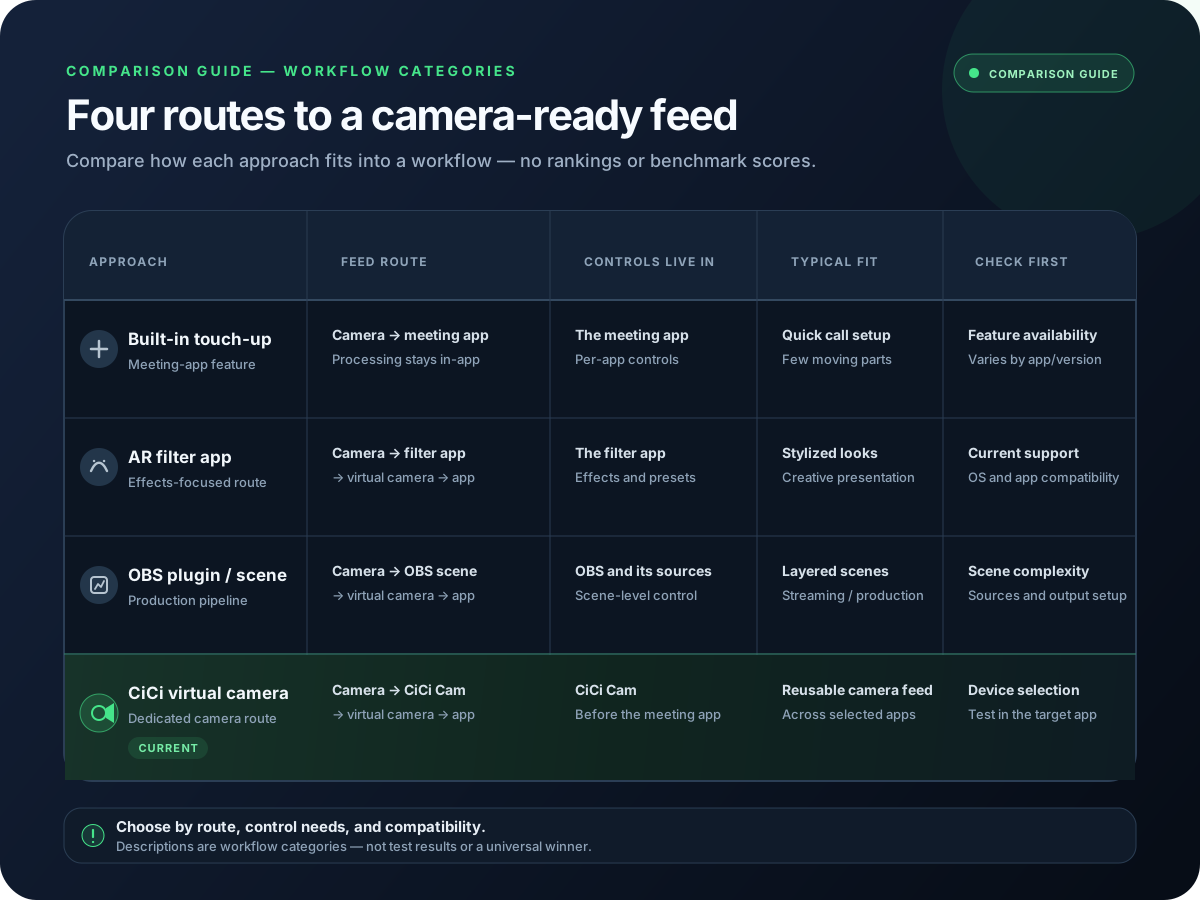
Webcam filter software feature comparison guide
Illustrated software categories; use the comparison below to check workflow fit
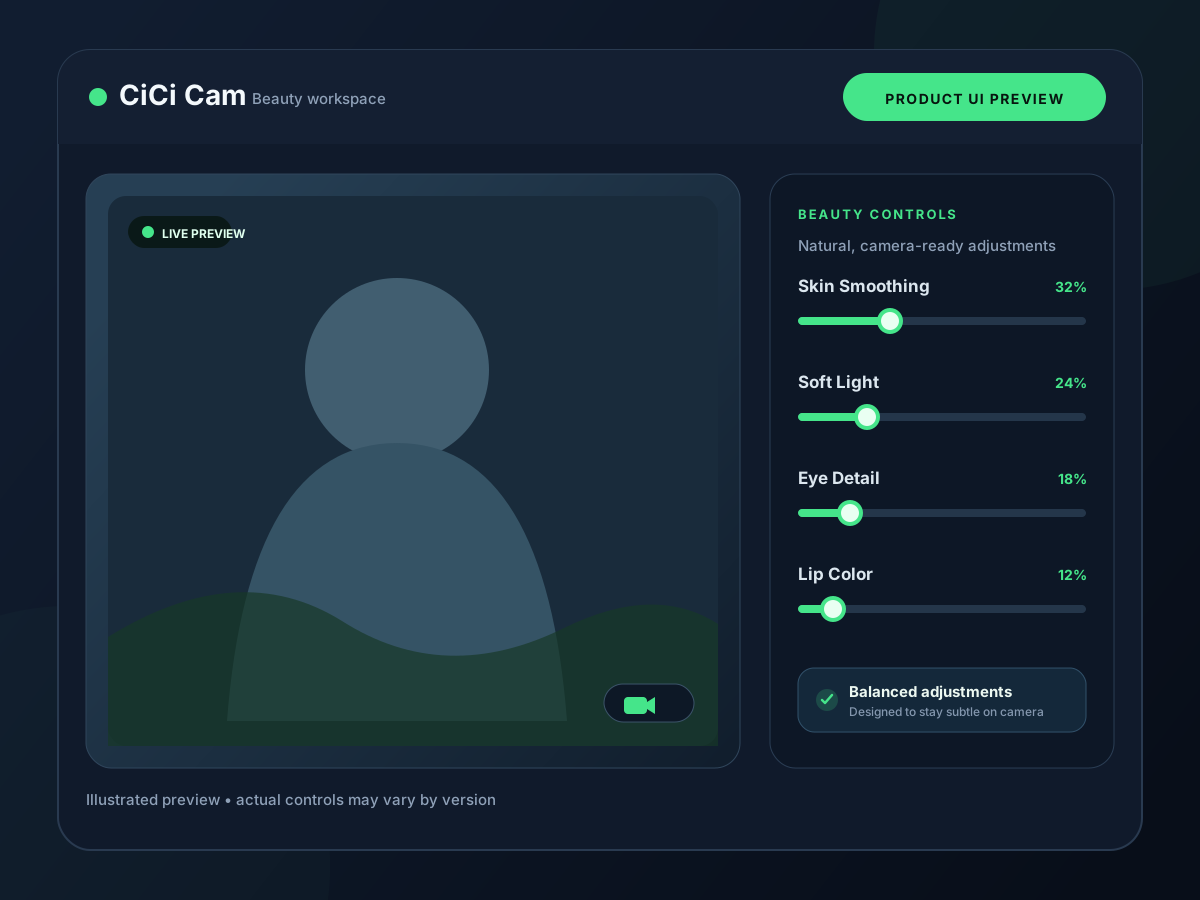
CiCi Cam beauty and lighting controls product UI preview
Independent sliders for every layer
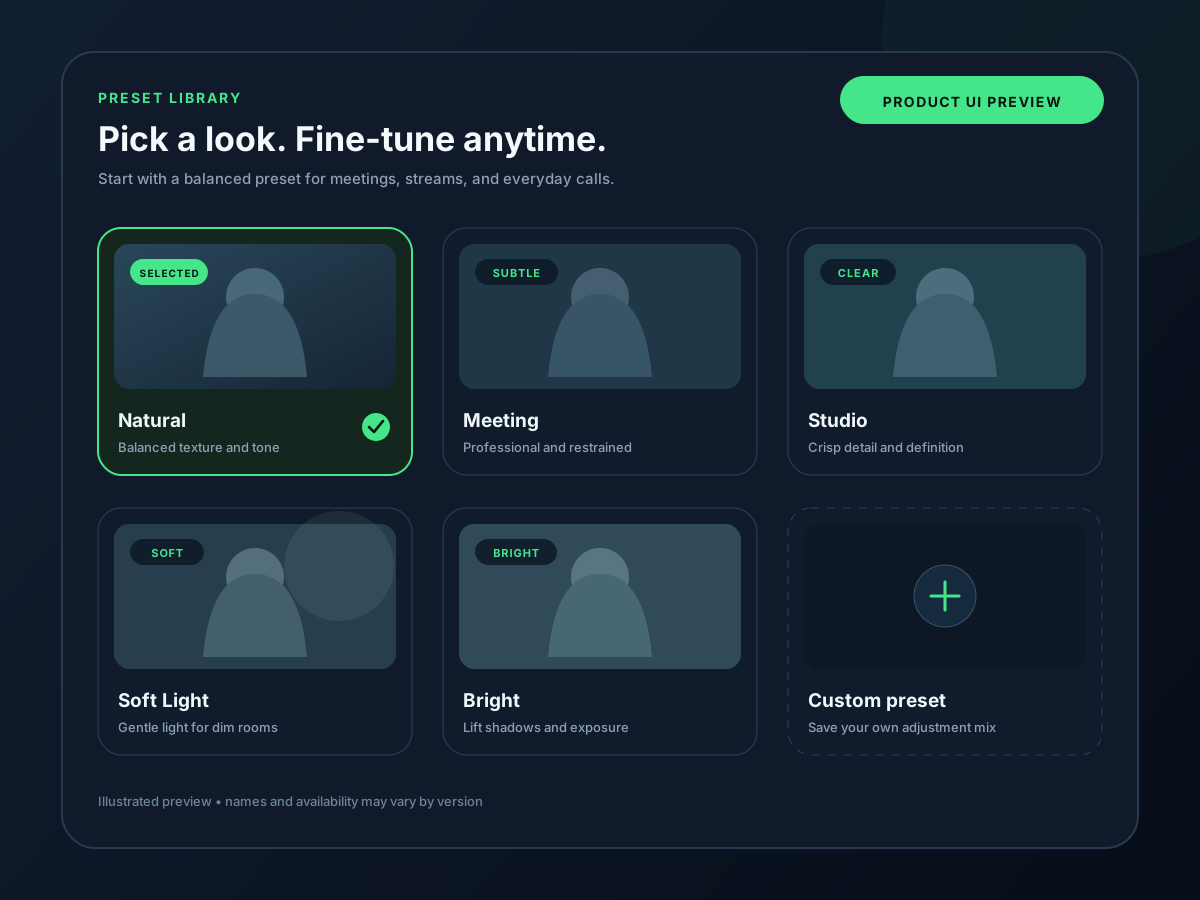
CiCi Cam named preset library product UI preview
Named looks for meeting, stream, and evening use

Webcam filter software compared by use case

This is a fit-by-use-case comparison based on current official documentation, not a universal score or a synthetic latency ranking.

Webcam filter software compared by use case
OptionBest forWhat stands outMain trade-off
CiCi CamWebcam filters and beauty effects delivered through a virtual cameraApply color filters, skin, facial lighting, makeup, and face-shape controls in CiCi Cam; select its output in a compatible app or as an OBS camera sourceFocused on appearance and camera presentation rather than multi-scene production or a large AR-lens library
CyberLink YouCamBeauty and playful AR effects on WindowsSkin enhancement, makeup, lighting, overlays, and a large effects collectionWindows-focused; available features vary by edition and trial status
ManyCamPresentations, virtual backgrounds, and multiple video sourcesVirtual webcam, scenes, overlays, backgrounds, screen content, and multi-source layouts on Windows and MacBroader production workflow than a focused beauty tool; some capabilities require paid plans
OBS StudioFree scene production, compositing, and color correctionOpen-source scenes, source filters, plugins, capture support, and a built-in virtual camera on Windows, Mac, and LinuxNo native skin or makeup pipeline; setup is more involved for a simple meeting look
NVIDIA BroadcastAI audio, background, framing, and video cleanup on RTX PCsNoise and echo removal, virtual background, auto frame, and video noise removal through virtual devicesRequires supported NVIDIA RTX hardware and Windows; it is not a dedicated beauty or makeup tool
Zoom or Teams built-in controlsA quick adjustment needed in one meeting appZoom offers Touch up my appearance and low-light adjustment; Teams offers Soft focus and Adjust brightnessSettings remain inside that app and do not create a reusable cross-app camera preset

Features, operating-system support, free-tier limits, and hardware requirements can change. Verify the current product page and test the exact destination app before purchasing.

How to choose and use webcam filters on a PC or Mac

Check both the effect and the way it reaches your call or stream. For CiCi Cam, the path is webcam → filters and beauty in CiCi Cam → virtual camera → destination app.

How do webcam filters work?

Webcam software processes frames from a physical camera. Color filters change the image's tone; beauty effects adjust areas such as skin or facial features. With CiCi Cam, these effects run in the desktop app, and its virtual camera makes the processed video available as a camera input. Selecting the original webcam in the destination app bypasses those effects.

Use camera filters with a laptop's built-in webcam

You do not need a separate USB webcam if the built-in camera works in CiCi Cam. Select that camera as the input, apply your filters, and leave CiCi Cam running. Select CiCi Cam in your meeting app's camera settings or as an OBS Video Capture Device source. Check system and app camera permissions if either device is missing.

Match the tool to one primary use case

Separate natural appearance work, AR entertainment, AI cleanup, and scene production. Products can overlap, but their interfaces and hardware requirements reveal what they are built to do best.

Verify the complete signal path

Check the physical camera input, processing app, virtual-camera output, and destination app. A feature is only useful if the final app can receive it reliably.

Use the same test conditions

Compare tools with the same camera, room light, resolution, frame rate, and destination app. Record setup time, facial detail, color consistency, frame stability, and restart behavior.

Treat pricing and compatibility as dated facts

Confirm the current operating-system requirements, hardware restrictions, plan limits, watermark rules, and installation permissions on the vendor's own site before committing.

Common selection and setup mistakes

Most disappointing results come from choosing the wrong category of tool or testing several processing layers at once.

Choosing AR software for a natural meeting look

Effect count does not measure subtle appearance quality. Judge skin detail, facial lighting, color, and how quickly you can return to a neutral preset.

Assuming every app accepts every virtual camera

Test your actual Zoom, Teams, browser, OBS, Discord, or recording workflow. Restart the destination app after installation and check operating-system camera permissions if the device is missing.

Stacking two appearance pipelines

Disable built-in touch-up, low-light, and beauty effects while evaluating a virtual-camera tool. Add one extra layer at a time only after the base feed looks correct.

Ignoring managed-device restrictions

A virtual camera may require installation privileges or approval on a work computer. Confirm policy before relying on any desktop tool for an important meeting or event.

Related CiCi Cam comparison and setup guides

Review notes and primary sources

Candidate availability, platform requirements, and feature categories were checked against official vendor documentation. This guide compares documented workflow fit; it does not claim a controlled hands-on latency benchmark or identical feature access across editions.

Frequently asked questions

What is the best webcam filter software in 2026?
It depends on the task. CiCi Cam is designed for detailed, natural appearance controls across compatible apps; YouCam is a Windows option for beauty and AR effects; ManyCam and OBS are stronger for production workflows; NVIDIA Broadcast focuses on AI cleanup for supported RTX PCs.
What's the difference between a webcam filter and a virtual camera?
A webcam filter changes the image. A virtual camera is an output device that sends the processed image to another app. Some tools provide both; filters built into Zoom or Teams stay inside that application.
Is there free webcam filter software for PC?
Yes. CiCi Cam's Starter plan provides SD/HD output with daily free limits for effects, delivered through its virtual camera. OBS Studio is free and open source for scene production and source color filters. Free downloads, trials, and unlimited use are different offers, so check the plan limits for the effects and session length you need.
Can I use webcam filter software in work meetings?
Usually, if your organization permits the software and virtual-camera device. Managed computers may require installation approval, and meeting policies may limit effects. Use a restrained preset and confirm the final preview before joining.
Which webcam filter apps work on both Windows and Mac?
CiCi Cam, ManyCam, and OBS Studio offer Windows and macOS workflows, with different requirements. CiCi Cam supports Windows 10/11 x64 and macOS 14 or later on Apple Silicon; it does not support Intel Macs. Check each tool's operating-system and hardware requirements before installing, especially on an older laptop.

Try CiCi Cam free

Install on Windows or Mac, build your preset, and use it in every video app.

Download CiCi Cam Free