OBS Virtual Camera sends a finished OBS scene out to another application. Virtual camera software processes a webcam first, then sends that processed feed into OBS or another application. The names are similar, but the direction and purpose are different.
The two basic signal paths are:
OBS Virtual Camera: Camera, screen, and other sources → OBS scene → OBS Virtual Camera → Zoom, Teams, Meet, or Discord
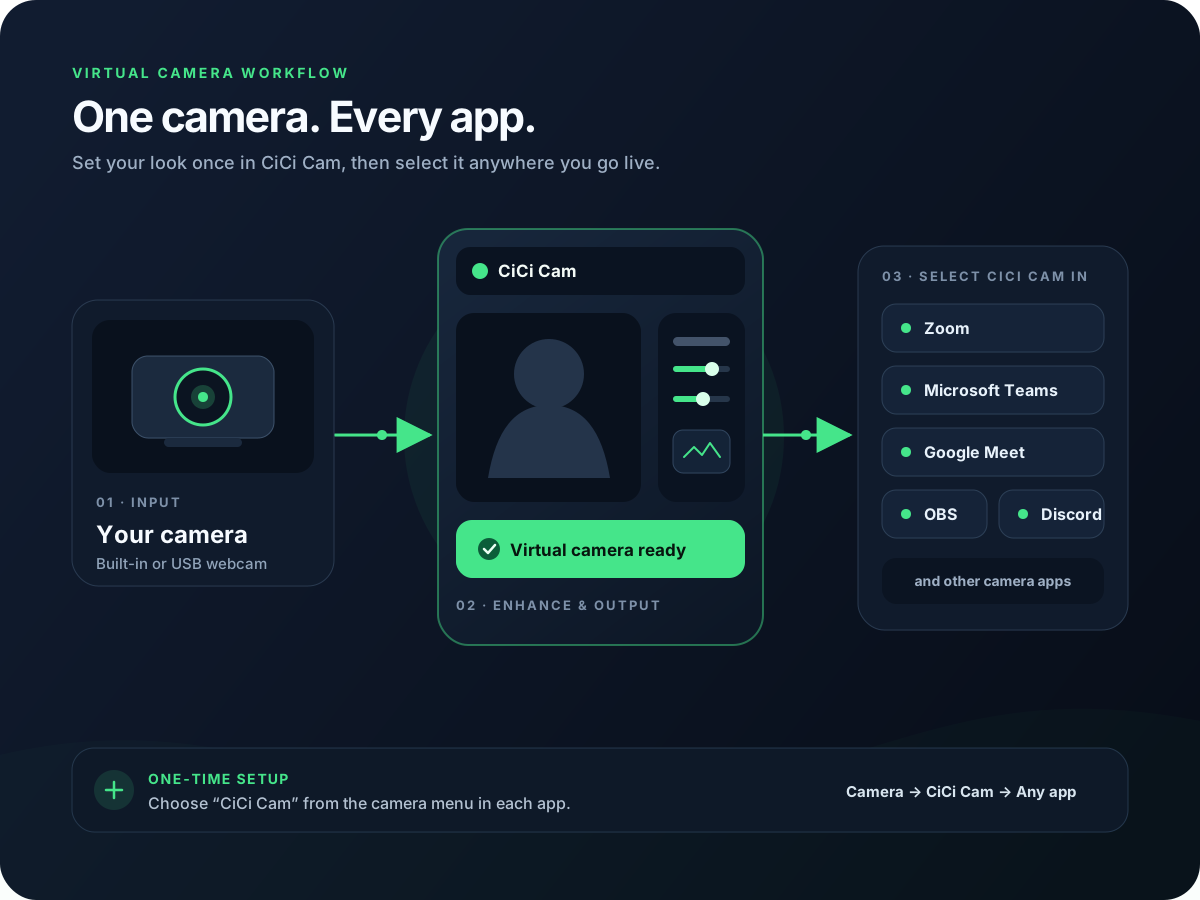
Virtual camera software: Physical webcam → processing software → software’s virtual camera → OBS, Zoom, Teams, Meet, or Discord
If your goal is to share an OBS layout as your webcam, use OBS Virtual Camera. If your goal is to improve the webcam image before another app receives it, use dedicated virtual camera software such as CiCi Cam.
The difference at a glance
| OBS Virtual Camera | Dedicated virtual camera software | |
|---|---|---|
| Primary job | Send an OBS scene to another app | Process a webcam and make it available to other apps |
| Typical input | OBS scenes, sources, graphics, screen capture, and video | A physical USB or built-in webcam |
| Typical output | The complete OBS canvas | An enhanced or filtered webcam feed |
| Direction relative to OBS | Out of OBS | Into OBS |
| Best for | Presentations, composed scenes, layouts, and overlays | Beauty, lighting, webcam filters, and a consistent look |
| Selected in | Zoom, Teams, Meet, Discord, or another camera app | OBS or any other app with a camera menu |
| Requires OBS | Yes | No |
The shortest way to remember the distinction is:
- OBS Virtual Camera is usually an output.
- Virtual camera software is usually a camera-processing input.
What does OBS Virtual Camera do?
OBS Virtual Camera turns an OBS output into a camera device that another application can select. According to the official OBS Virtual Camera guide, it can expose the OBS Program output, Preview, a specific scene, or a specific source, depending on its settings.
This makes it useful when the receiver needs more than a normal webcam image. For example, an OBS scene can include:
- A webcam positioned beside a screen share
- A presentation with a speaker overlay
- Text, titles, logos, and lower thirds
- Multiple cameras or media sources
- A cropped or color-graded camera source
After composing the scene, click Start Virtual Camera in the OBS Controls dock. Then open the destination application and select OBS Virtual Camera from its camera menu. The destination app receives the OBS output as if it came from a webcam.
The signal path looks like this:
Camera + screen + graphics → OBS composition → OBS Virtual Camera → video-call app
Starting OBS Virtual Camera does not, by itself, enhance a face or turn the OBS output into an input for the same scene. Its main job is to deliver an OBS output elsewhere.
What does dedicated virtual camera software do?
Dedicated virtual camera software sits before the receiving application. It takes a real webcam as input, processes the picture, and registers the result as a camera device that OBS and other applications can select.
CiCi Cam follows this workflow:
Physical webcam → CiCi Cam processing → CiCi Cam virtual camera → OBS or video-call app
Inside CiCi Cam, the user can adjust skin, facial lighting, makeup, face shape, and filters. OBS does not perform those face-aware changes. It receives the finished CiCi Cam image through a Video Capture Device source and treats it like a regular webcam.
This approach is useful when you want:
- The same camera look in OBS, Zoom, Teams, Meet, and Discord
- Face-aware beauty and makeup controls rather than scene-wide color correction
- One saved camera preset without recreating effects in every destination app
- A simple enhanced webcam without building a complete OBS scene
For a broader explanation of system camera devices and app compatibility, see what a virtual camera is.
Why the names cause confusion
Both tools create a software camera that appears in a camera dropdown. The difference is not whether either one is a “real” virtual camera. The difference is what produces the feed and where that feed goes.
When you choose OBS Virtual Camera in Zoom, Zoom receives an output produced by OBS. When you choose CiCi Cam in OBS, OBS receives an output produced by CiCi Cam.
| Camera selected in the receiving app | What the receiving app gets |
|---|---|
| OBS Virtual Camera | An OBS scene, source, Preview, or Program output |
| CiCi Cam | A webcam processed inside CiCi Cam |
| Physical webcam | The raw camera feed |
The device name in the dropdown tells you which application is upstream. It does not tell you that every virtual camera has the same purpose.
Which one should you use?
Choose the workflow based on the result you need, not the shared “virtual camera” name.
Use OBS Virtual Camera for a complete composed scene
Use OBS Virtual Camera when you want another application to see the OBS canvas. This is the right choice for:
- Teaching with slides and a camera in one layout
- Presenting a screen with titles or branding
- Sending a multi-camera scene into a meeting
- Using OBS scene switching during a call
- Turning a stream-style layout into a selectable webcam
OBS remains the center of this workflow. You build the scene first, start its virtual camera, and select OBS Virtual Camera in the destination app.
Use dedicated virtual camera software for webcam enhancement
Use CiCi Cam or similar software when the desired output is still fundamentally a webcam, but with improved lighting, skin controls, makeup, face adjustments, or filters.
This is the simpler route when you want to:
- Look consistent across several meeting and streaming apps
- Add a beauty filter before OBS receives the camera
- Avoid using OBS for a normal video call
- Change the camera look without rebuilding an OBS scene
In OBS, add a Video Capture Device and select CiCi Cam. Do not click Start Virtual Camera merely to bring CiCi Cam into OBS; that control sends an OBS output in the opposite direction.
For the complete input setup, see how to add a beauty filter to OBS without Snap Camera.
Can you use both at the same time?
Yes. A two-stage workflow uses each virtual camera for a different part of the pipeline:
Physical webcam → CiCi Cam → OBS scene → OBS Virtual Camera → Zoom, Teams, Meet, or Discord
In this setup:
- CiCi Cam receives the physical webcam.
- CiCi Cam applies beauty, lighting, makeup, or filters.
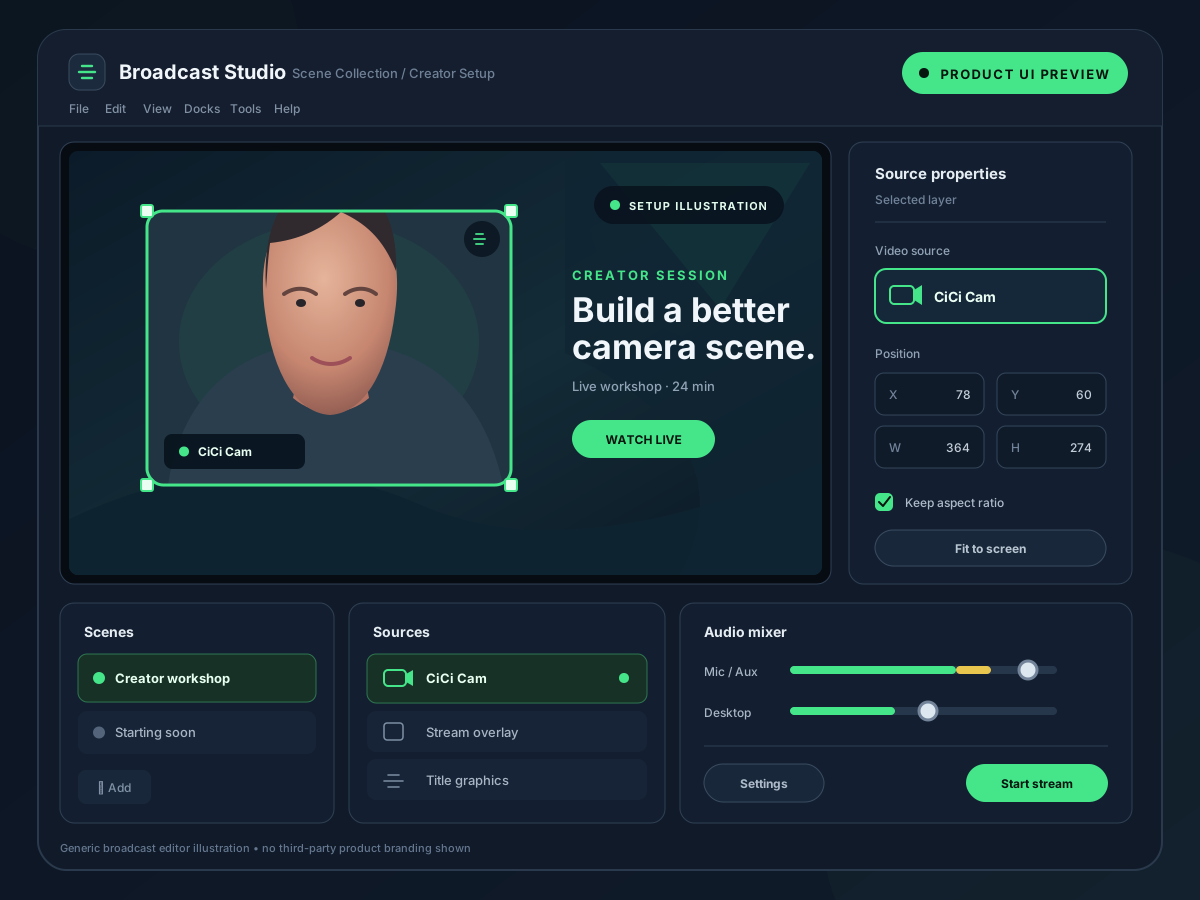
- OBS receives CiCi Cam as a Video Capture Device.
- OBS adds screen capture, graphics, text, cropping, or other sources.
- OBS Virtual Camera sends the completed scene to the final application.
This is useful for a polished webinar, remote presentation, or video call that needs both face-aware webcam enhancement and an OBS layout.
Four common workflow examples
| Goal | Recommended workflow |
|---|---|
| Improve your camera in Zoom | Webcam → CiCi Cam → Zoom |
| Add beauty processing to an OBS stream | Webcam → CiCi Cam → OBS |
| Send an OBS presentation into Teams | Sources → OBS → OBS Virtual Camera → Teams |
| Send an enhanced, composed scene into Meet | Webcam → CiCi Cam → OBS → OBS Virtual Camera → Meet |
Notice that OBS Virtual Camera is not necessary in the first two examples. It is only needed when an application outside OBS must receive the OBS output.
Does OBS Virtual Camera include beauty filters?
OBS can crop, mask, color-correct, and grade camera sources, and its scenes can combine many visual elements. Those operations affect a source or the overall picture. They are different from face-aware controls designed to adjust skin, facial lighting, makeup, or features.
If a basic color or composition change solves the problem, OBS may be enough. If the task is targeted webcam enhancement, process the camera in CiCi Cam first and let OBS handle composition afterward. The Beauty Filter for OBS Studio page explains how those roles fit together.
Does using both add complexity or latency?
Every additional processing stage adds some work, so use the shortest pipeline that achieves the result. A simple meeting does not need to travel through OBS just because OBS has a virtual camera. Likewise, a presentation with multiple sources cannot be reduced to a webcam filter application.
When using both tools:
- Match the camera resolution and frame rate across CiCi Cam and OBS.
- Avoid applying two heavy effect stacks to the same image.
- Check that CiCi Cam uses the physical webcam and OBS uses CiCi Cam.
- Leave enough GPU capacity for OBS composition and encoding.
- Test audio and video synchronization in the final destination app.
If the final app only needs an enhanced camera, select CiCi Cam directly and remove OBS from the path.
Common setup mistakes
Selecting the physical webcam in both applications
CiCi Cam should receive the physical webcam. OBS should receive the CiCi Cam virtual camera. Asking both applications to open the physical device can cause a camera-in-use error, black screen, or frozen preview.
Starting OBS Virtual Camera to add a camera source
The Start Virtual Camera button is for sending an OBS output to another app. To add CiCi Cam to OBS, use Sources → Video Capture Device → CiCi Cam.
Selecting OBS Virtual Camera inside OBS
For the normal enhancement workflow, this points the pipeline in the wrong direction and may create a feedback loop. Select CiCi Cam or the physical camera as the OBS source instead.
Closing the upstream application
A virtual camera needs the application producing its feed. If CiCi Cam closes, OBS can lose the enhanced camera. If OBS closes or its Virtual Camera stops, the destination application can lose the OBS scene.
If a camera device is missing from an app’s menu, use the virtual camera not showing up troubleshooting guide.
Frequently asked questions
Is OBS Virtual Camera the same as a virtual webcam?
OBS Virtual Camera is one type of virtual webcam. It exposes an OBS output as a camera device. Other virtual webcams may output a processed physical camera, an avatar, or another generated video feed.
Is CiCi Cam an OBS plugin?
No. CiCi Cam runs as separate virtual camera software. It processes the physical webcam before OBS receives the result. In OBS, it appears as a Video Capture Device rather than an OBS beauty plugin or filter.
Do I need OBS Virtual Camera to stream from OBS?
No. OBS can stream and record directly. OBS Virtual Camera is for sending an OBS video output to an application that accepts a camera input.
Can Zoom or Teams see both virtual cameras?
When both applications are installed and running correctly, the camera menu can show both CiCi Cam and OBS Virtual Camera. Select CiCi Cam for the enhanced webcam alone, or OBS Virtual Camera for the completed OBS scene.
Which virtual camera should I choose inside OBS?
Choose CiCi Cam when you want OBS to receive the webcam processed by CiCi Cam. OBS Virtual Camera is normally selected in the application receiving the OBS output, not as the camera source for the same OBS scene.
The final decision
Use OBS Virtual Camera when the finished product is an OBS scene that another application needs to receive. Use dedicated virtual camera software when the finished product is an enhanced webcam feed that OBS or another application needs to receive.
If you need both enhancement and scene composition, connect them in this order:
Physical webcam → CiCi Cam → OBS → OBS Virtual Camera → destination app
To compare the features that matter in a standalone camera-processing tool, continue with the guide to the best virtual camera software.