


OBS Studio captures video and audio sources, combines them into a scene, and sends the result to a recording, a live stream, or a virtual camera. Understanding these stages makes it easier to choose the right settings and find where a problem starts.
For a typical webcam stream, the video path is source → source filters → scene composition → encoder → stream or recording. OBS Virtual Camera is a separate output route; you do not need to start streaming or recording to use it.
The OBS video pipeline at a glance
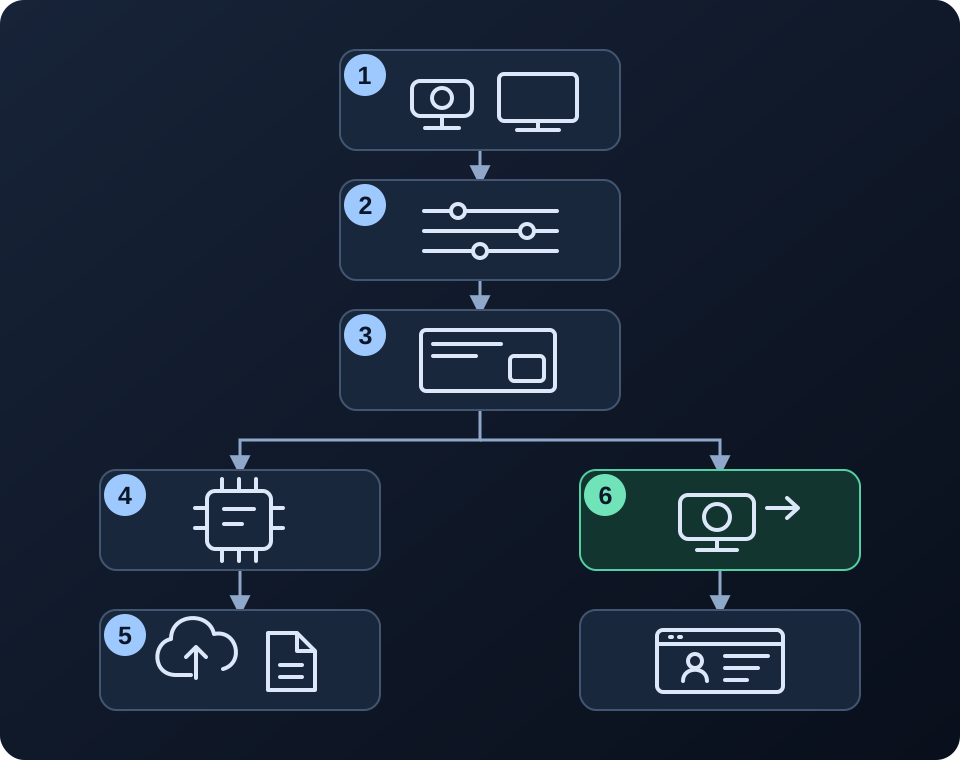
| Stage | What happens | What you control |
|---|---|---|
| 1. Sources | A webcam, screen, image, or other input supplies content | Device, capture mode, source properties |
| 2. Source filters | Effects change that source’s picture | Color correction, masks, plugin effects |
| 3. Scene composition | Sources are placed together on the canvas | Position, size, crop, layer order |
| 4. Encoding | Video frames are compressed for an encoded output | Encoder, quality preset, bitrate |
| 5. Streaming / recording | Output is sent to a server or written to a file | Streaming destination, recording path |
| 6. Virtual camera | Video becomes a camera input for another app | Output selection, receiving app’s camera |
Inside OBS: the interface, libobs, and plugins
The OBS interface is where you arrange scenes and change settings. Underneath it, libobs provides the media pipeline, audio and video subsystems, and plugin framework. Sources, encoders, outputs, and streaming services are different building blocks. A plugin can add one of these capabilities; a plugin is not necessarily a visual filter. The official OBS backend design explains this separation.
For example, an effect filter changes a source’s picture, while an encoder compresses frames for delivery. Installing a beauty filter does not replace the streaming encoder, and changing the encoder does not change where your webcam appears in the scene.
What is the difference between a source and a scene in OBS?
A source supplies content; a scene arranges sources into a layout. A teaching scene might contain a screen capture, a webcam in the corner, and a title. Sources higher in the list appear over those below them, so a full-screen image can hide a working webcam. The OBS Sources Guide explains source order and visibility.
Changing a source’s device or capture resolution changes its input. Dragging that source’s handles in the preview changes its placement or size in the scene. Enlarging a low-resolution camera image does not capture more detail. For the actual setup steps, use our OBS webcam setup guide.
Filters: where image processing happens
A source filter affects the source it is attached to. A filter on a scene affects that scene’s combined picture, which can also include text and screen content. Apply a camera-specific effect to the camera source when that is the only picture you want to change. OBS includes tools such as Color Correction, Apply LUT, and Chroma Key; their roles are listed in the official Filters Guide.
Beauty processing can sit in different places:
- Inside OBS: webcam → OBS camera source → CiCi OBS Plugin filter → scene. The plugin installation guide explains how to apply it; the CiCi OBS Plugin page covers availability and plans.
- Before OBS: webcam → CiCi Cam desktop processing → CiCi Cam virtual camera → OBS camera source → scene. Follow the virtual camera beauty setup for this route.
CiCi OBS Plugin and CiCi Cam are different products and processing paths. Avoid applying the same beauty effect in both places by accident. Color grading and face-aware retouching also serve different purposes; see OBS color correction versus beauty filters.
For filter placement, processing order, and shared webcam sources, see OBS source filters, scene filters, and filter order.
Capture resolution, canvas, and output are different
| Setting | Meaning | Example |
|---|---|---|
| Camera capture resolution | The picture supplied by the device | A 1280×720 webcam image |
| Base canvas resolution | The workspace for arranging the scene | A 1920×1080 layout with the webcam in one corner |
| Output resolution | The size selected for the output | A 1280×720 stream scaled from that layout |
Capture resolution, canvas size, and output resolution need not match. A larger canvas does not upgrade the webcam’s detail, and a small webcam overlay may not need the camera’s highest capture mode. Some output modes provide additional scaling options, so check the settings for the output you actually use.
Encoding, streaming, recording, and virtual camera
For a typical stream or recording, the encoder compresses the picture and the output sends or saves it. Streaming and recording can use different quality settings and may add workload when run together. The OBS recording output guide explains encoder selection and recording settings. A local recording does not require an internet broadcast.
OBS Virtual Camera instead exposes video to an application such as Zoom. It does not require the streaming encoder to be running. Its output can be Program, Preview, a selected scene, or a selected source, as described in the official Virtual Camera Guide. Our OBS Virtual Camera tutorial covers setup and audio limitations.
Use the pipeline to narrow down problems
| Symptom | Check first |
|---|---|
| Webcam missing, but other scene elements work | Selected device, permissions, source visibility, other apps using the camera |
| Text changes color along with your face | Whether the filter is on the whole scene instead of the webcam |
| Rendering lag | Scene complexity, effects, and available GPU resources |
| Encoding lag | Encoder workload, preset, resolution, and frame rate |
| Network dropped frames during streaming | Upload connection and streaming server connection |
OBS uses the GPU to compose scenes even when a CPU encoder is selected. Its performance troubleshooting guide explains that distinction. Compare the preview and a short local recording, then inspect the statistics while streaming: this helps separate input, rendering, encoding, and delivery problems. For camera effects, continue with our beauty filter lagging guide.
Frequently asked questions
Is CiCi Cam the same as OBS Virtual Camera?
No. CiCi Cam can send an enhanced camera image into OBS. OBS Virtual Camera sends a selected OBS video output out to another application. See the comparison of OBS Virtual Camera and virtual camera software for examples.
Does a hardware encoder remove the cost of filters?
No. Hardware encoding handles video compression; sources, filters, and scene composition still require resources. If an effect makes the preview stutter, changing the streaming bitrate alone will not necessarily solve the problem.
Sources and review scope
Reviewed on 2026-10-28 against the official OBS documentation linked above. The diagram shows a common video workflow rather than every internal thread, buffer, or plugin hook. For the next practical step, browse the OBS streaming guides.