Beauty Filter for Online Interviews
Quick answer
A reliable online-interview setup starts with eye-level framing, clear audio, stable connectivity, and a test in the recruiter's actual platform. If you also want a light appearance adjustment, CiCi Cam can create a restrained virtual-camera preset for compatible desktop and browser interview tools.


Windows 10/11 · macOS 14+ on Apple Silicon · Test the actual interview app and account in advance
Why the default setup falls short
Lighting and camera position change the picture
A low laptop camera and overhead light can create an unhelpful angle, deep eye shadows, or an uneven exposure. Fixing the physical setup first produces a more dependable result than relying on a strong filter.
Every interview platform has different controls
Zoom, Teams, Google Meet, and browser-based interview tools expose different camera menus, permissions, and built-in effects. A setup that worked in one app still needs to be checked in the app named in the invitation.
Last-minute permissions cause avoidable delays
A missing virtual camera, blocked browser permission, occupied webcam, or managed-device policy can derail the first minutes of a call. Testing the exact workflow before interview day leaves time for a fallback.
How the setup works
- 1
Install and test before interview day
Install CiCi Cam on a supported Windows or Mac computer, select the physical webcam, and confirm the preview is live. If the device is managed, check installation and virtual-camera policy early.
- 2
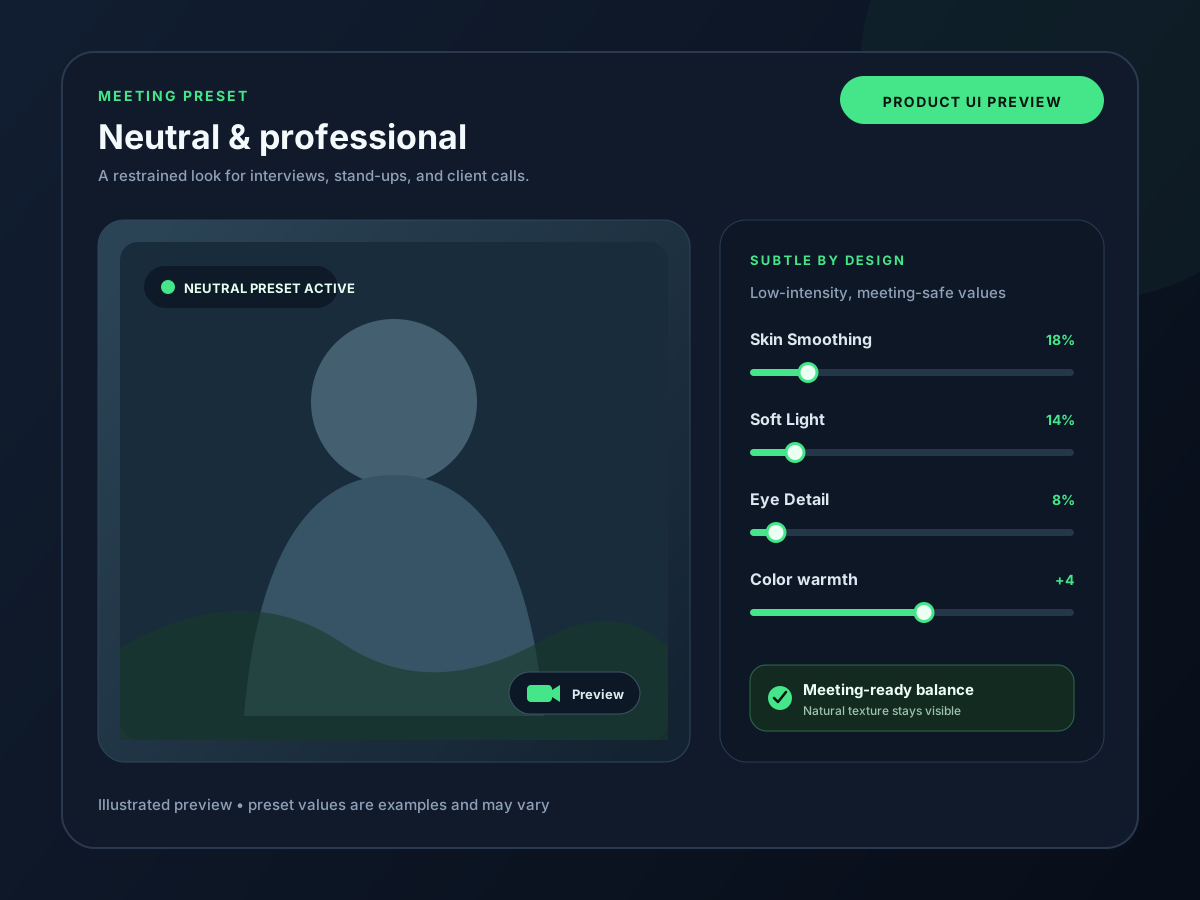
Create one restrained preset
Start with light smoothing or facial soft light and add only small adjustments that solve a visible problem in the final preview. Keep skin texture, facial movement, and color believable.
- 3
Rehearse in the actual interview platform
Open the supplied interview link or app, grant camera access, select the virtual camera, and check the platform's final preview. Do not assume every browser tool exposes the same devices.
- 4
Run a ten-minute pre-call check
Confirm camera, microphone, speakers, background, battery or power, and network. Close unused camera apps, keep the physical webcam available as a fallback, then stop watching your self-view once the call begins.
See it in your workflow
Setup visuals and product previews
What CiCi Cam includes
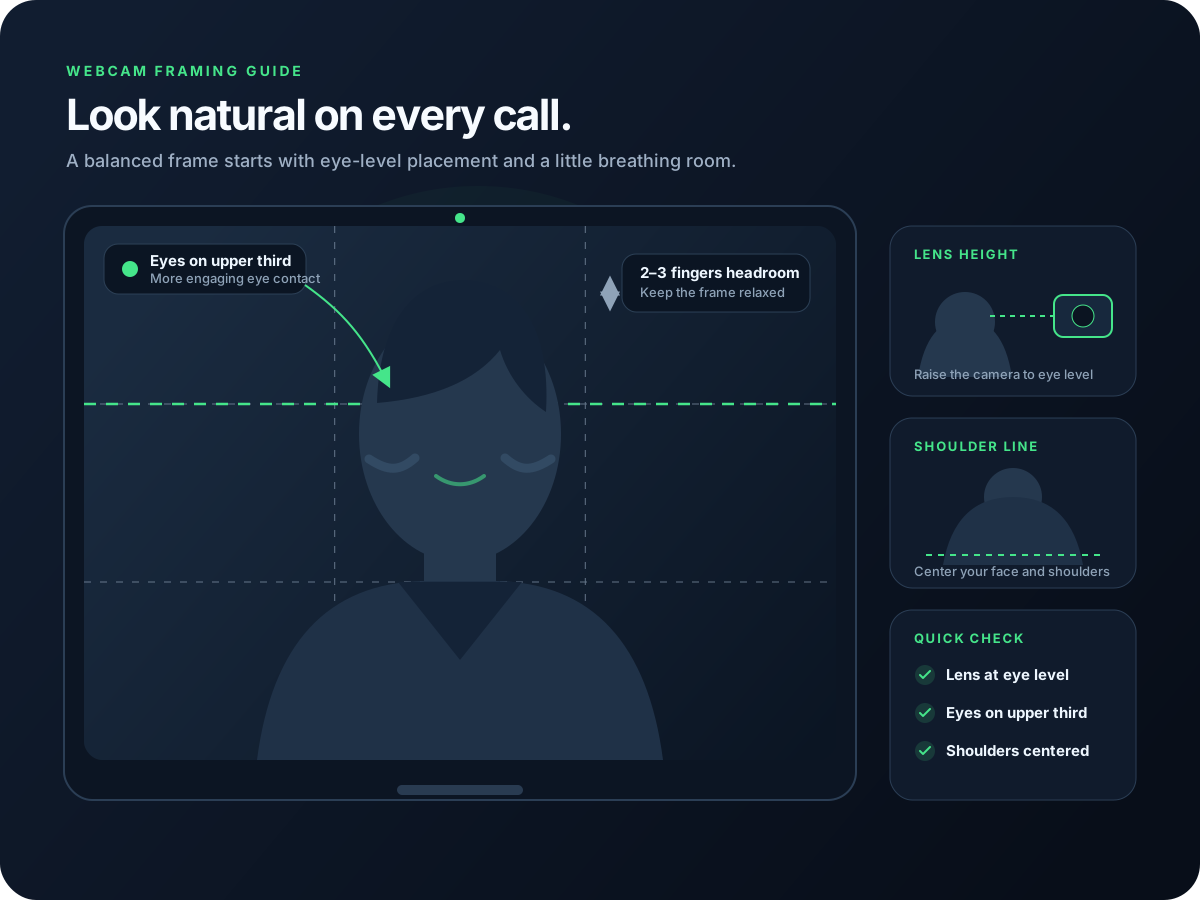
Camera and eye line
Raise the camera close to eye level, frame from roughly mid-chest upward, and look toward the lens while answering. Check the final crop in the interview app.
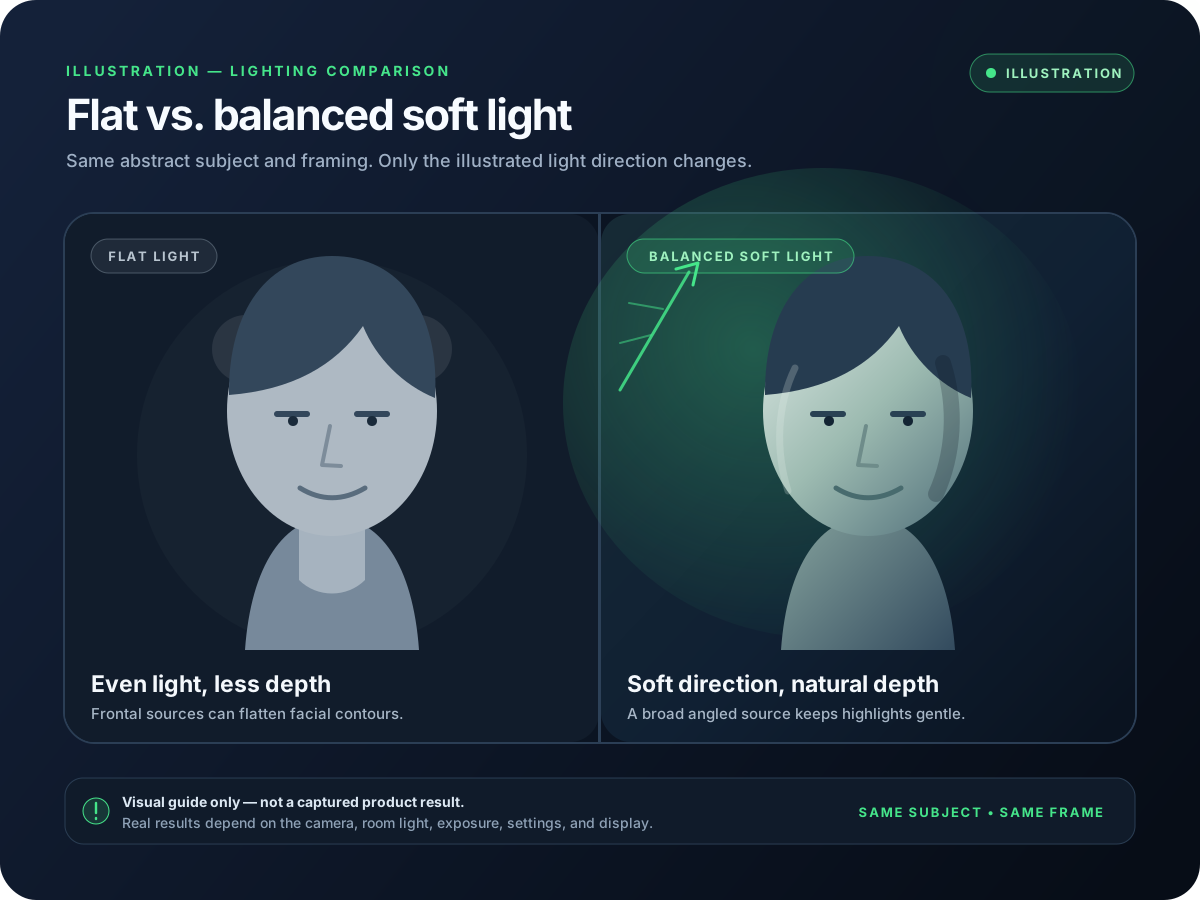
Soft front lighting
Face a window or diffused lamp and avoid a bright window directly behind you. Software can balance modest exposure differences, but it cannot recover every heavily backlit image.
Audio, network, and interruptions
Test the selected microphone, use headphones if echo is likely, pause large downloads, connect power, silence notifications, and keep the interview link and contact details nearby.
Privacy and a fallback camera
CiCi Cam processes its appearance effects locally on the computer. Still review the interview platform's own privacy terms, and know how to switch back to the physical webcam if needed.
Last reviewed:
Frequently asked questions
Is it okay to use a beauty filter in an online interview?
When should I test CiCi Cam for an interview?
What if the virtual camera does not appear in the camera list?
Does this work with Zoom, Teams, and Google Meet interviews?
Can software improve my interview result?
Try CiCi Cam free
Test the complete setup before interview day, keep any preset restrained, and enter the call with a verified camera, microphone, and backup plan.
Download CiCi Cam Free